

Search Ellipsoid

Arrowed axes are displayed which allow you to visually validate the 3D search ellipsoid and verify the relationship between strike, main axis plunge, and second axis plunge search parameters. See: Ellipsoid Parameters
When you right-click on a Search Ellipsoid selected in the Vizex display, or the Vizex Layer Display pane, an Edit Ellipsoid option allows you to interactively position the ellipsoid in 3D using the mouse. See: Ellipsoid Edit
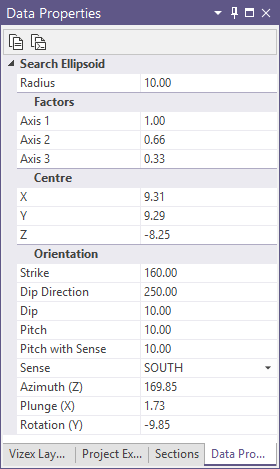
When you select the ellipsoid object in the Vizex display, editable properties are shown in the Data Properties pane:
The display properties for the Search Ellipsoid can be viewed from the Display Properties pane:
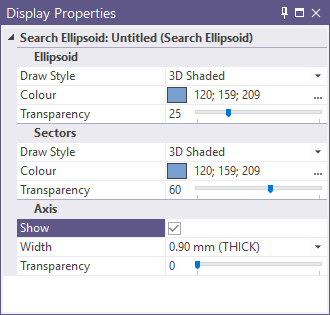
From the Display Properties, you can select modify the draw styles, colours and transparency settings, as well as select whether to display the Axis.
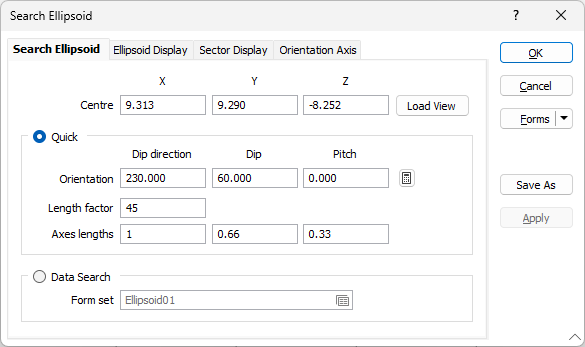
Double-click the Search Ellipsoid layer in the Vizex Layer Display pane, to open the Search Ellipsoid form.
Centre
Enter coordinates to define the centre of the ellipsoid.
Load View
Selecting this option will ensure that the centre of the ellipsoid is positioned at the centre of the current view.
Leaving the Centre X, Y, Z prompts blank will dynamically update the centre to fit the screen.
Quick
The Quick display options are used to enter the Dip Direction, Dip and Pitch values manually or from rotation calculation, as well setting a Length factor and Axes Length values for the ellipsoid. Setting the Quick display options precludes the need to select a Data Search form set.
Orientation
The Orientation values define the Dip Direction, Dip and Pitch for the search ellipsoid. You can enter these values manually, or click the Calculate button to open the Geological Plane Rotations dialog to calculate them.
Length Factor
Enter a Length Factor to be applied to all axes for the quick display settings in the field provided. The Length Factor is multiplied by the Radius to establish the final length for each axis.
Axes length
Enter the Length for Axis 1, Axis 2 and Axis 3 in the fields. See Axes.
Data Search
Select the Data Search option to use a data search form set to configure the search ellipsoid display.
Double-click (or click on the form icon) in the Form Set field to select a saved data search form set. You can also edit (F4) a form set that was previously selected.
For information on creating a data search form set, see Create a new Data Search form set.
Forms
Click the Forms button to select and open a saved form set, or if a form set has been loaded, save the current form set.
By design, the Forms button is not available for loaded Vizex layers (i.e. when opening the form set properties of a layer in the Vizex Layer Display pane). In Vizex, the Forms button is only available for new forms opened via the Home tab or the Vizex tab, in the Layer group (or by double-clicking on a form type node in the Vizex Layer Types pane).
Save and Save As
Click the Save button to save the changes you have made to the form set. Click Save As to save your changes as a new form set. Save As will default to the first available form set number.
Manage
Click Manage to open the Form Set Manager for the current form.
Reset
Click Reset to clear the form of all values and reset the form to its default state.
Reset Tab
For tabbed forms, select Reset Tab to clear the active tab of all values and reset the tab to its default state - without making any changes to other tabs in the dialog.
Undo and Redo
Click Undo (CTRL + Z) to undo recent changes in the form. After an Undo, click Redo (CTRL + Y) to restore the last change that was undone.
Collapse
Collapse (roll-up) the form to preview a chart, or preview the results of an operation in Vizex, or obtain input values from Vizex, the Property Window, the File Editor, or the Plot Editor.