

Split Shapes by Interpolation

Points can be inserted either at a specified segment Distance or by segment Count. For example, if a segment is 200 metres long and 2 points are inserted (one a distance of 90 metres and a second at a distance of 180 metres) three segments will be created (two segments 90 metres in length and one segment 20 metres in length).
 Input Data
Select the Source of the data that will be used as input to the function:
| Selection | Design elements you have interactively selected in the Design Window. |
| Visible | Design elements that are visible in the loaded layer. Elements that have been specifically hidden are excluded. This a quick way of selecting all visible elements in a layer without having to explicitly select them. |
| Layer | One or more layers that you select. Names of layers currently loaded in the Design Window are shown in bold. |
For large datasets, you may prefer to select a layer rather than load that layer and select all of the elements in the layer. Selecting a non-applicable layer will have no effect. In most cases, an error icon  will indicate the chosen input layer is not valid. Hover over the icon to view a validation hint.
Settings
Spacing Mode
Use the drop-down to select segment Distance or segment Count as the Spacing Mode.
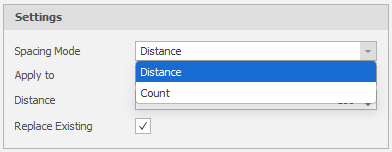
Apply To
Choose whether the split will be applied to a selected Shape (or shapes) or be applied to the Segment of a single shape.
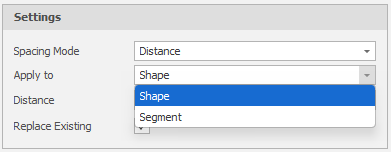
You will be prompted to select the shapes or the segment on a selected shape accordingly.
Distance/Count
Specify an interval Distance or else specify a segment Count. The value will correspond to the Spacing Mode you have selected (above).
Assign Index Attribute
A Boolean value indicating whether the output shapes should be assigned an index value.
Index Attribute
If the Assign Index Attribute check box is ticked, select an Index attribute, For identification purposes, the process will write the index number from the Index column into that attribute for each shape.
Replace Existing
Select this check box to replace the existing shape or shape segment. If you clear this check box you will be prompted to select an Output Layer. In the Layer Selection pane, you can right-click on the Layers node (or a folder) to Add a new layer.
In the following example, the Spacing Mode is segment Count and Apply To is set to Shape.
Select the design element to split and then click Apply to interpolate:
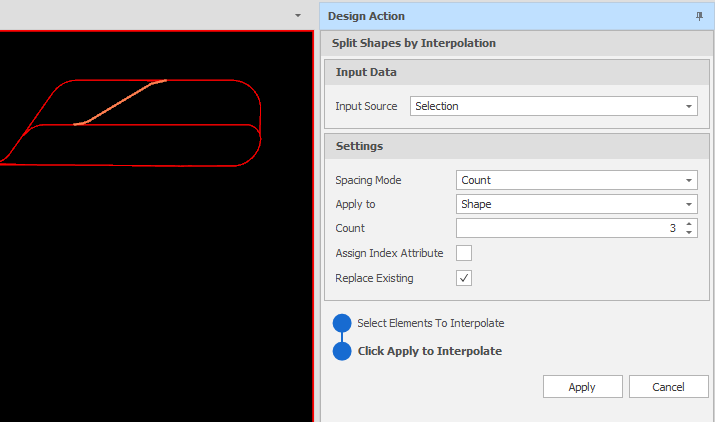
The selected shape or segment is split based on the segment Count value entered. If necessary: On the Design tab, in the Action group, click Undo (CTRL + Z) and Redo (CTRL + Y) to undo and redo (revert the undo of) the last action.
Note: To continue splitting shapes by interpolation, you will need to reselect the element to interpolate:
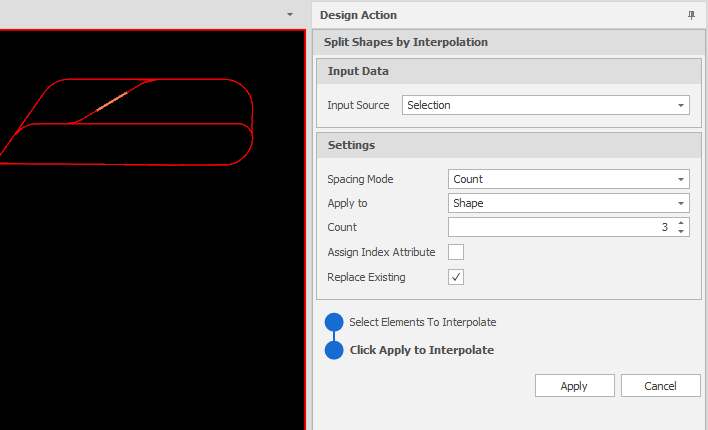
Click Cancel to exit Split Shapes By Interpolation mode.