Intersect Triangulation Sets

Set 1
Select the Source of the data that will be used as input to the function:
| Selection | Design elements you have interactively selected in the Design Window. |
| Visible | Design elements that are visible in the loaded layer. Elements that have been specifically hidden are excluded. This a quick way of selecting all visible elements in a layer without having to explicitly select them. |
| Layer | One or more layers that you select. Names of layers currently loaded in the Design Window are shown in bold. |
For large datasets, you may prefer to select a layer rather than load that layer and select all of the elements in the layer. Selecting a non-applicable layer will have no effect. In most cases, an error icon  will indicate the chosen input layer is not valid. Hover over the icon to view a validation hint.
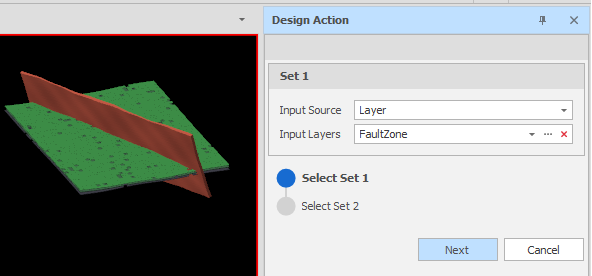
In this example, Set 1 is a fault zone cutting through seams.
Set 2
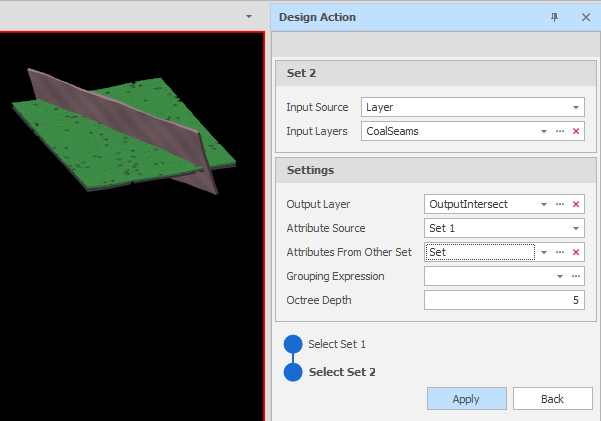
Click Next and select the Input Source for Set 2.
Settings
Attribute Source
Choose which Set (Set 1 or Set 2) the attributes will be obtained from.
Attributes from Other Set
(Optional) In addition to the Attribute Source, select nominated attributes from the Other Set.
Attribute Source picks which side of a pair the result inherits from wholesale. Attributes from Other Set then overwrites only the nominated attributes from the opposite side of that same pair.
Output Layer
Use the drop-down to select an Output Layer.
Tip: In the Layer Selection pane, you can right-click on the Layers node (or a folder) to Add a new layer.
Grouping Expression
Click on the ellipsis to use the Expression Editor to create a Grouping Expression that will be used to subdivide the input source data into groups. The action will be applied to each group, rather than to the input source as a whole.
For example, you want to apply an action to each of the Strips that comprise a Pit Solid:
GetText(IdentifiersStrip)
Octree Depth
The Octree Depth decides which pairs get tested. Accept the default Octree Depth value or specify a value (0 - 5).
Apply
Finally, click Apply to intersect triangulation sets.
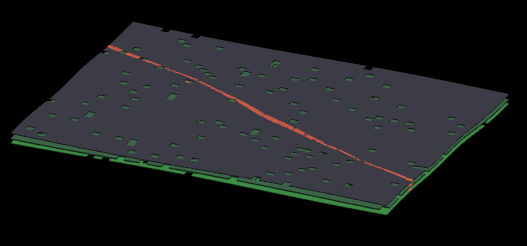
In the Output layer, the red band shows where the fault zone and the seams intersect:
Check that the result of the operation is what you expect. If necessary, use CTRL+Z to undo.