

Georeference an Image
Triangulations in the application can have an image mapped to them to assist in visualisation, scheduling and particularly Haulage Network placement.
The process to georeference points is manual (via the Properties of the Triangulation) and normally you will want to map exactly three points on the Triangulation and three points on the Image.
In order to best georeference an image, pick three clear points of interest on your triangulation (which exist on your image as well) and copy the coordinates of those points into a text editor, i.e. Notepad++. From here you can then:
-
In the Design Data pane, right click on the name of a Triangulation (triangulations can share a georeferenced image mapping) and select Properties.
-
Click the ellipsis [...] next to the Georeferenced Image drop-down to open the Georeferenced Images Manager.

-
In the Georeferenced Images pane (top left), right-click on the Geoereferenced Images node and select New Georeferenced Image.
-
In the "No Image Data" pane, right-click to select one of the following Import options:
-
Select Load Image to locally import an image.
Tip: You can double-click in the "No image data" pane to do the same thing.
-
Select Load Server Image to stream an image located on a server.
Note: For image files in *.ecw format, the design_georeferenced_image_ecw_streaming setting in All Settings should be set to True.
When loading a file locally, if an .ecw file is selected, it will be stored in the project file. A 1 GB limit is in place. A low-res bitmap will be taken of the image and will be used as a fallback if there are subsequently problems decoding the .ecw image file.
Similarly, when loading a file from a server, the URL will be saved as well as a low-res bitmap for fallback purposes. The .ecw file cannot be stored in the project since the ecwps protocol is for streaming only.
When using an .ecw image as a triangulation texture, it will use a tiled approach. As the camera gets closer to the triangulation, the tile will update to have more detail. When zooming out, the tile will lose detail to improve performance.
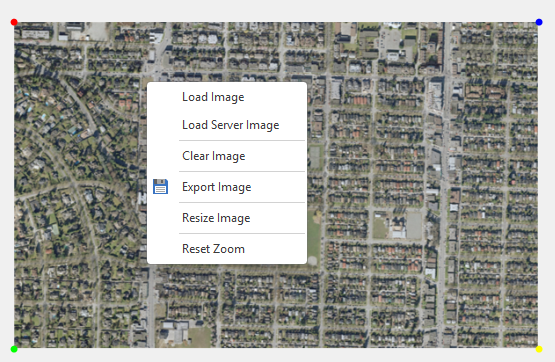
-
Right click the image in the same three locations from your triangulation and pair them together using the + Mappings at the bottom of the Georeferenced Images window.
Once you have three mappings you can "Select" the image and wait for your triangulation to load with an image now applied.
To manage georeferenced images, right click on Triangulations in the Design Data pane and select Manage Georeferenced Images.