

Licensing
To view your current licensing details, manage your licence or change your licence, click the File tab to open the Backstage menu and select Licensing.
The options that are available to you will depend on the licensing system that is currently active (if any). You can choose between Legacy and Micromine licensing systems:
Tip: To avoid waiting for the application to load before changing your Licence Configuration, on application startup, hold down the SHIFT key before the Licensing splash screen appears. This will suppress an initial licence check. Click Open License Administrator (Legacy) or Cloud Licensing to update your licensing details.
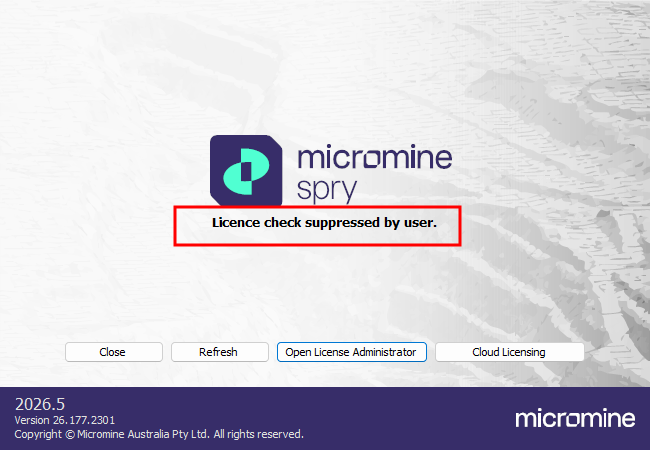
Click Refresh to continue after changing your licensing details.
Click Close to close the application.