

Use a Security Token to Test Swagger Routes
Overview
All of the routes have a Try It Out! button that allows you to explore and test the route.
If token based authentication is enabled, you will need to create, and then add a security token to the authorisation section of the PRIS OpenAPI document.
It is best to use any browser which is NOT Internet Explorer.
Enable the Try it out! button for all Routes.
To test the PRIS routes from the Swagger documentation, you will need to add at least one GET and POST to the following configuration tag within PRIS appSetttings.config.
(Below shows how to set it for all http verbs , i.e. all routes)
<add key ="AllowedSwaggerTryItOutVerbs" value="GET POST DELETE PATCH PUT"/>
If this tag is not in the appSetttings.config, just add it. Once this is done restart the PRIS application pool (either iisreset, or touch/edit its web.config).
To disable all of the Try it out! buttons for all routes, add an empty string for the value, i.e.:
<add key ="AllowedSwaggerTryItOutVerbs" value=""/>
This may be desirable in production.
Create a Security Token
Open a browser (ideally NOT Internet Explorer), navigate to the PRIS home page, and click the OpenAPI button.
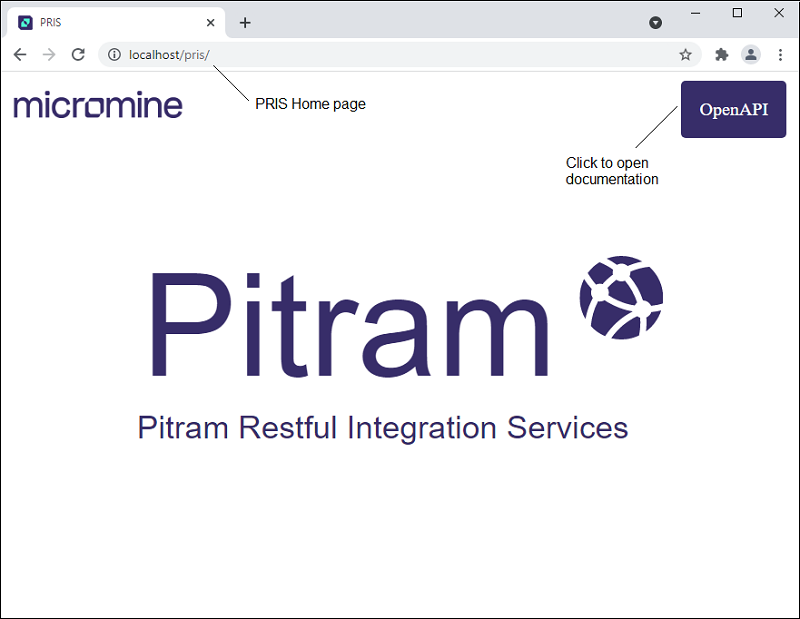
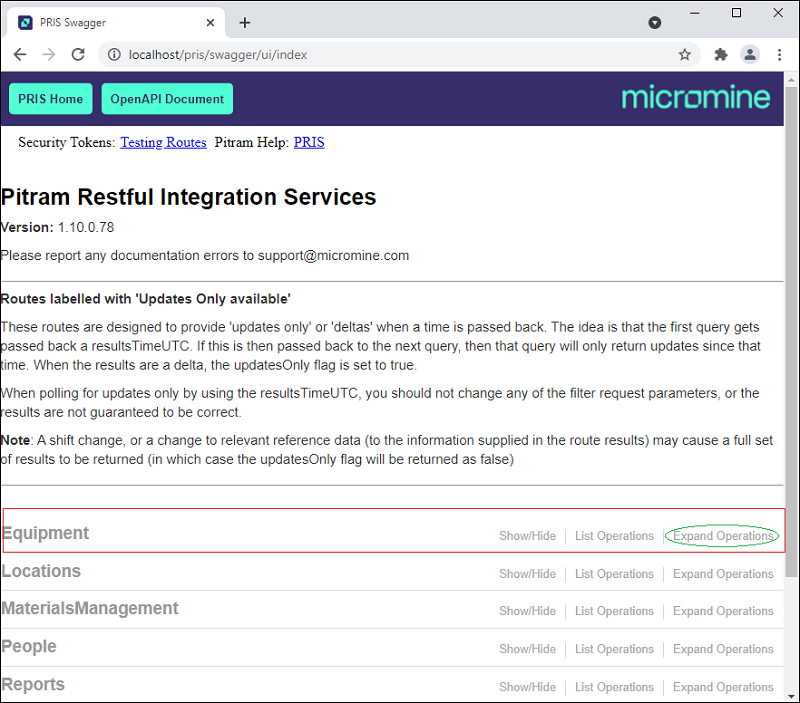
Open the PRIS OpenAPI page, and locate a route you wish to run. Here we will use the Equipment Cycle status as an example.
Click on the Expand Operations button:
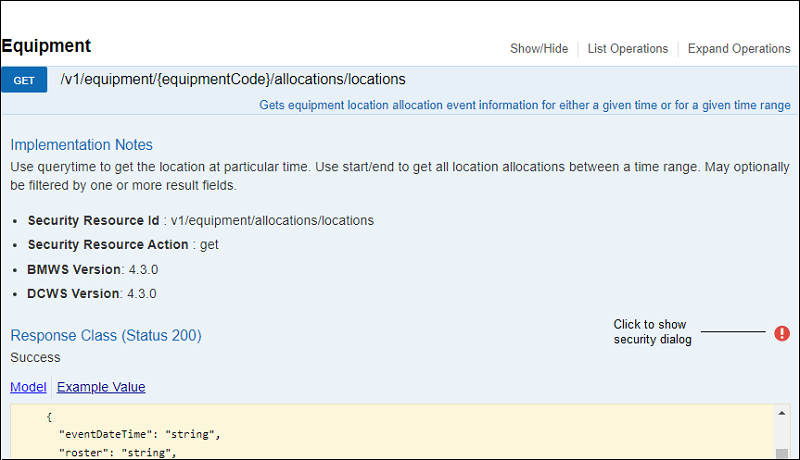
Click on the small Authorization icon:
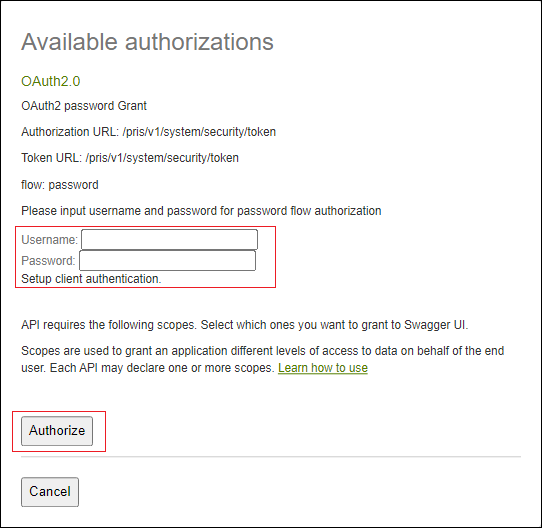
Enter a username and password in the dialog and then click the Authorize button:
The list will now collapse and refresh (give it a few seconds). Now when you go back into your route or go back into any route you wish to run (this is not ideal, but for the time being it is the behaviour), the Authorization icon should now show, as in the following example:
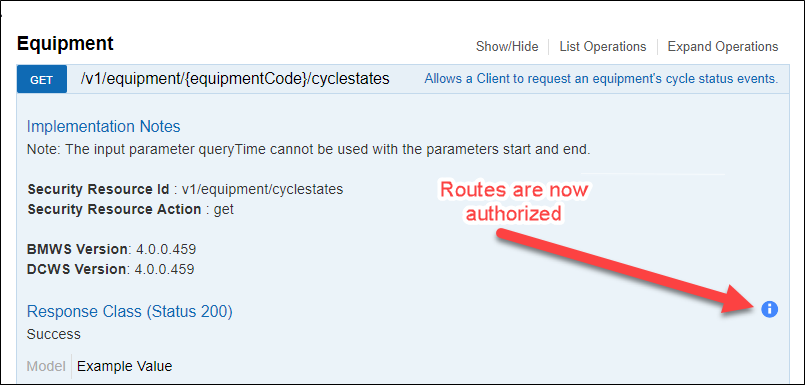
If this does not show as above, the next step would be to use the token route to test the login details (see below).
Note you can click this icon again to log out once you are finished.
Using the Security Token to run a Route
Once you have done the above once, all routes should now be authorised.
You should now be able to fill in the rest of the route parameters and use the Try It Out! button to run it. On success you will see the results, otherwise the error will be displayed to allow further troubleshooting.
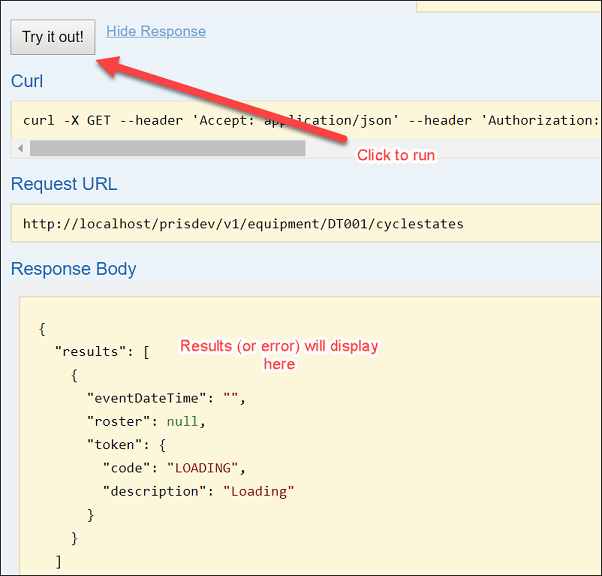
If there is a problem authorising
To test this, run the System token route:
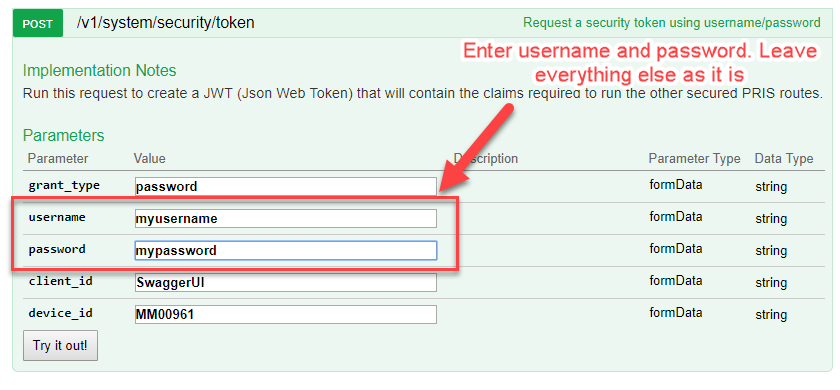
If there is an error, you will get an error description in the results.