Interacting with Structural Data
When structural data is displayed in Vizex it can be manipulated and edited interactively. Interacting with the data writes back to the file and updates the dip and dip direction fields.
Interact Mode
The Interact Mode option on the Structural Data and Structural Ribbons tab is used to select whether to move a selected structural data point or ribbon along the orientation, or rotate it.
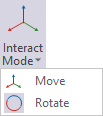
With Move or Rotate interact mode enabled, there are two interaction modes:
-
Hold down and drag the mouse to move/rotate and then release the mouse to complete the interaction.
-
Click to begin the interaction, then move the mouse to move/rotate, then click to complete the interaction.
This mode allows easier use of the input angle fields, because you don't have to hold down the mouse while typing in a value.
Both pressing Escape and a mouse right-click will cancel the current interaction.
You can also:
-
Hold down the CTRL key while rotating to snap rotation angles to 30/45 degree increments.
-
While rotating you can snap to objects in Vizex. This will make the structural data 'point towards' the snapped object.
Handlers can be used to move and rotate the discs and ribbons in your Structural Data. Editable angle annotations are shown during interaction:
Discs
-
To move a disc, click on the disc to select it. The disc is rendered with a bold blue outline. You can then click or click and drag the disc to move it (see Interaction modes below):
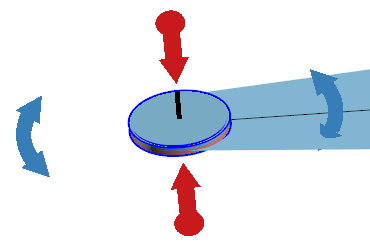
When using an interactive handle to rotate a disc, a pop up field will be displayed with the Dip (Red) or Dip Direction (Blue) value displayed.
-
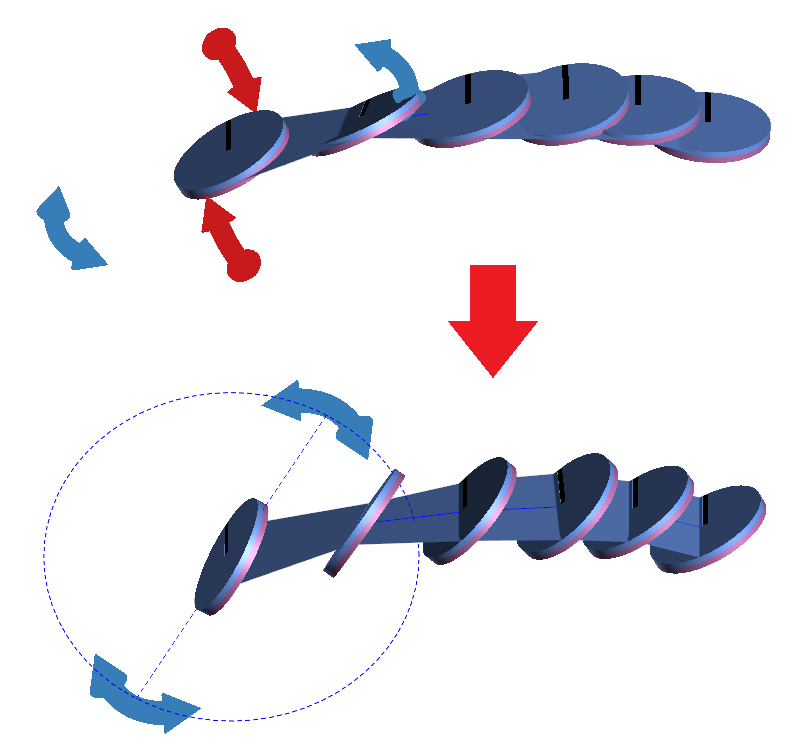
Red handlers can be used to rotate the disc back and forth , and change the Dip and Dip Direction:
-
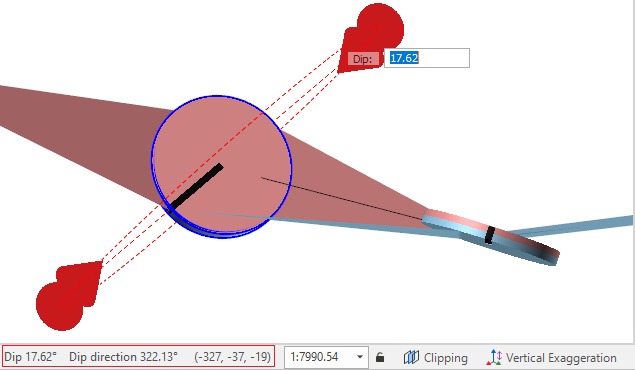
Blue handlers can be used to rotate the disc clockwise/counter-clockwise and change the Dip and Dip Direction:
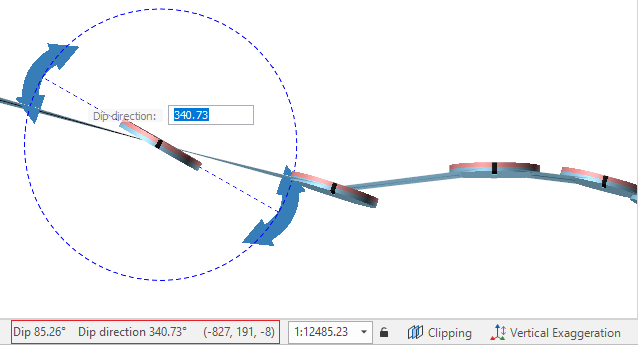
You can enter a value directly in the pop up fields and press ENTER to preview the change in Dip or Dip direction. You can then either:
-
Press ENTER again to commit the change
-
Modify the value and press ENTER to preview again.
-
Dip, dip direction and positional information is also shown on the Status bar when rotating.
Ribbons
-
To move a complete ribbon, click the ribbon to select it. The ribbon will indicate selection with a darker shade.
You can then click or click and drag the ribbon to move the whole ribbon. An indicating line will be displayed to select the place to move the ribbon:
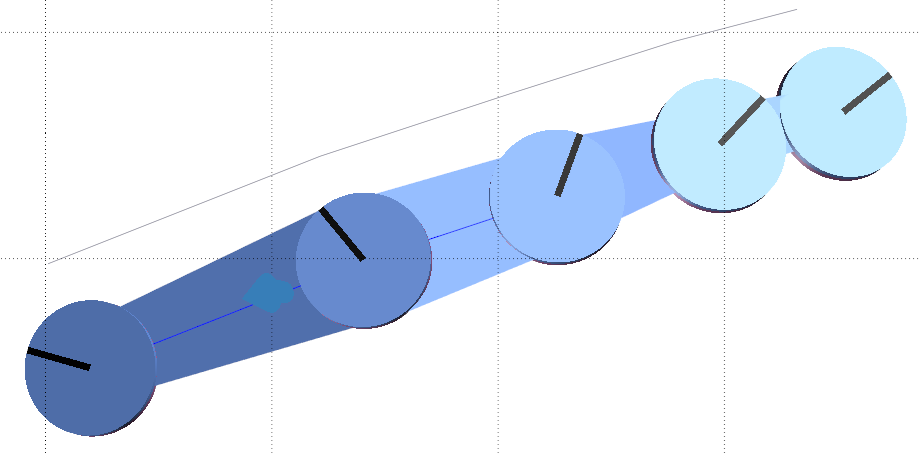
Release the mouse to place the ribbon.
-
To extend the ribbon in Move interaction mode, click the point at the end to be extended. Drag the end of the ribbon to the length and in the direction required:
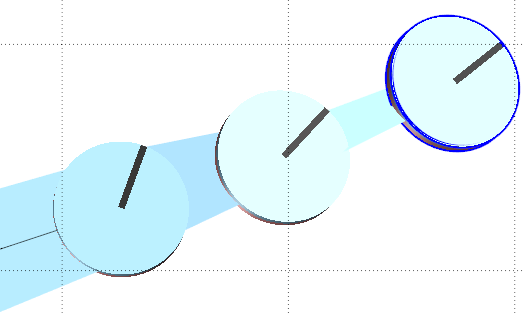
When you release the mouse, the rotation handles will be displayed.
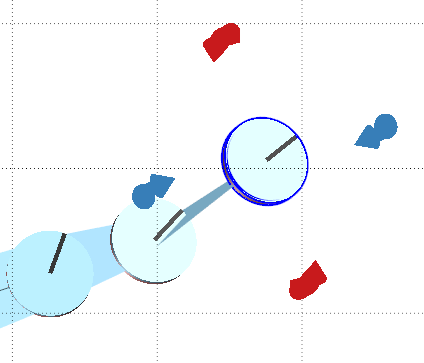
Note: On the Structural Data layer, you can toggle the display of Interactive Handles using the tool in the Structural Data | Display group.
If you select the ribbon and use the Red and Blue handles to change the values for the dip and dip direction, all points (discs) will be rotated/changed at the same time:
Right click to Save your changes. Undo/redo is supported while interactively moving or rotating the discs.
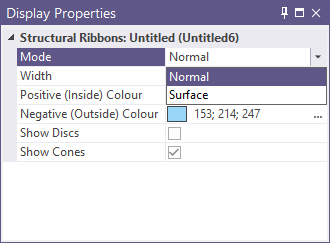
Information on a selected ribbon will be displayed in the Display Properties pane:
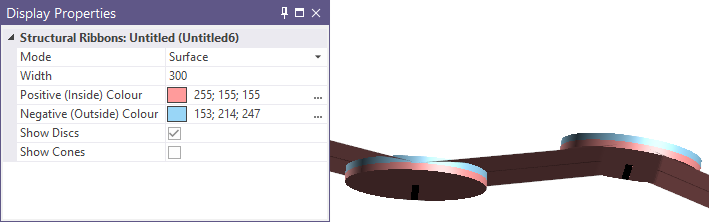
The controls in the panel can be used to modify the display mode, ribbon width, positive/negative colours, and toggle display of discs and cones - without using the tools in the Vizex | Structural Ribbons ribbon.
For example, you can toggle the display mode for the structural ribbon layer using the Mode drop down: