Display
On the Display tab of the Drillhole Planning Shape form, set display characteristics for the trace strings, collars and hole name labels.
Colour
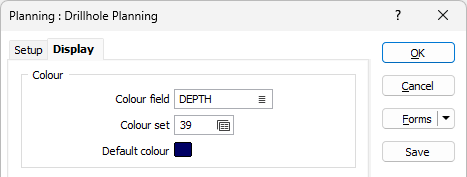
The options in the Colour section of the Display tab are used to configure colour coding settings including a colour field and a default colour.
Colour field
Specify the name of a field which contains the values that will be used to colour-code the display.
You can choose to select colour values directly from the Colour field without selecting a Colour set. In this case, the values in the Colour field must be valid RGB, Hex, or Integer colour definitions.
| Format | Example |
|---|---|
| R,G,B | 89,169,215 |
| HTML Hex | #59A9D7 |
| Hex | 0x59a9d7 |
| int | 5876183 |
Colour set
To map values in the Colour field to the colour values in a Colour set, double click (F3) to select the set that will be used to control the display colour. Right-click (F4) to create or edit a Colour set.
Default colour
Double-click (F3) to select the colour that will be used when a Colour field or a Colour set is not defined - or when a value in the Colour field is either not valid or is not mapped in the Colour set.
Trace
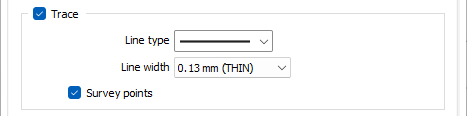
Select the Trace option to enable display of trace strings in the drillhole plan.
Line type
Select a line type. A preview of each line type is shown in the drop-down list. A variety of solid, dotted, and dashed line styles are available for selection.
Line width
Select a (THIN, MEDIUM, THICK, or custom) line width from the drop-down list. An extensive selection of custom widths (in millimetres) are available for selection.
Survey points
Select the Survey points option to enable display of any existing survey points for the trace.
Collar
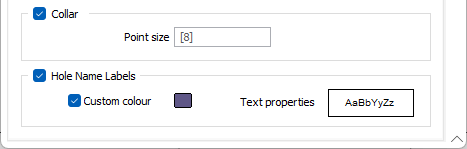
Select the Collar option to enable display of collars in the drillhole plan.
Point size
Enter a Point size for the collar display or accept the default of 8.
Hole Name Labels
Select the Hole Name Labels option to set the colour and text properties of the hole name labels.
Custom Colour
By default, the colour selected for the trace is also applied to the hole name labels. Select this check box to select a custom colour for the labels.
Text Properties
Double-click on the Text Properties Preview box to select a font and set text properties.