

View

This option is also available on the Drillhole | Viewer tab, in the Viewer group, when the Viewer is already open.
You will prompted to select a Drillhole Database (the current project folder is the default folder location). Once a database has been selected, the associated files referenced by the database are shown in separate panes.
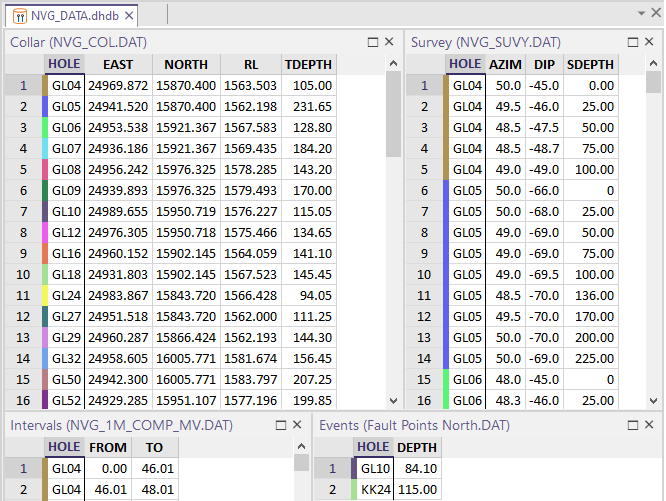
Hole selection is synchronised across the different panes of the Viewer and hole colours are customisable, making it easy to differentiate between and correlate holes across different panes.
Visibility options allow the fields which are not referenced by the drillhole database to be hidden or shadowed, making it easier to focus on the details of a particular subset of holes.


Previous, Next and Filter options make it easy to navigate the holes.
On the Drillhole | Viewer tab, in the Window group, you can use the Show Panes menu to set which panes are visible in the Viewer:

Validation/Errors
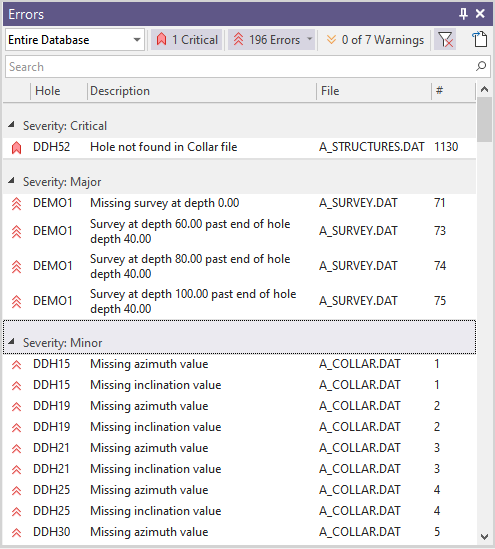
When you validate a Drillhole Database, if errors are detected and you choose to Fix errors, a Validation/Errors pane is loaded in the Viewer and is synchronised with other panes.
Error rows can be grouped according to the severity of the error.
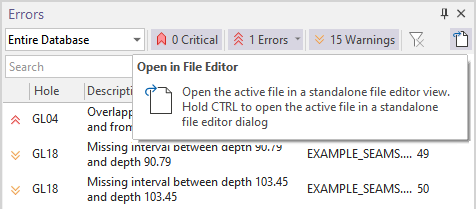
You can open the active file in a standalone error view using the Open in File Editor button at the top right of the toolbar:
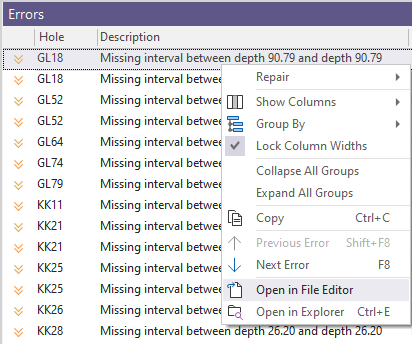
Alternatively, you can right-click inside the Errors list and select Open in File Editor from the context menu.
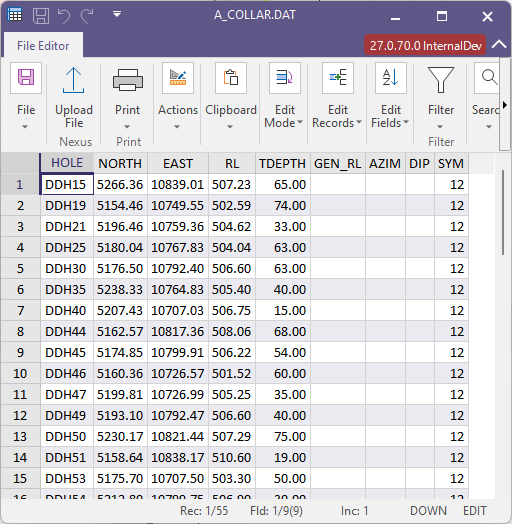
This will open the file in a view as follows:
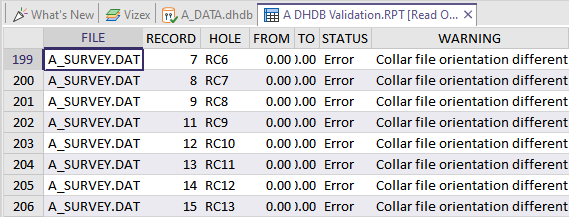
If you hold CTRL and click the option, the file will open in a dialog.
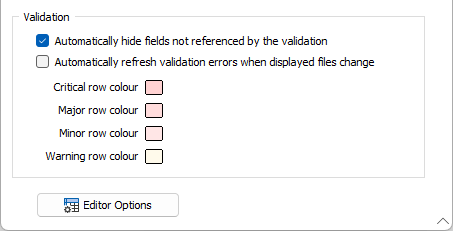
Rows in the file panes of the Viewer which match to the errors shown in the Validation/Errors pane can be colour-coded as part of your Viewer Options:
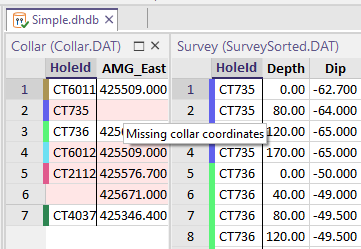
When the mouse is hovered over the corresponding row of a file in the Viewer, a tooltip detailing the error or warning is shown:
Forms
Click the Forms button to select and open a saved form set, or if a form set has been loaded, save the current form set.