

Header
The Header tab controls the size and content of the Main Header, as well as the size of the Column Header area (the individual column header “content” is part of each column’s definition).
The Main Header is positioned at the top of each page. It consists of an “empty” frame that extends across the width of the page. The height of the frame is defined in paper units (typically millimetres). Selecting the option to show a Border enables the Border Colour and Line Thickness prompts.
The properties of the text shown in the column header for each column is defined on the Column Properties tab when you edit the properties of each column in the Columns grid on the Drillholes tab of the Drillhole Log form. Here you can turn (header and borders) display options on or off for each column.
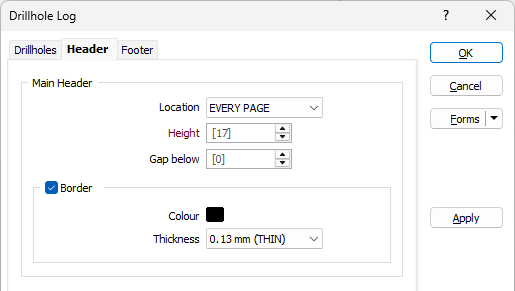
Location
A header can be displayed for EVERY HOLE or on EVERY PAGE. If you prefer not to show a header, select NONE.
Height
Specify the height of the Header, measured in points. The default height will be used if no value is specified.
When a spin control has focus, you can use the mouse wheel to increase or decrease the displayed value.
Gap below
Optionally specify a gap, measured in points, between the bottom of the header and the top of the columns displayed in the Log. By default, 0 gap will be applied.
Border
Select the check box to display a border.
Double-click on the icon to set the colour for the frame border. This input is disabled when a NULL fill colour is selected.
Select a line thickness value (in millimetres) for the border of the frame. THIN, MEDIUM, THICK, or a Custom thickness can be selected. This input is disabled when a NULL fill colour is selected.
Column Headers
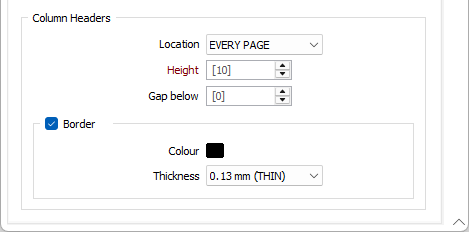
The Header tab also defines the height of the region that will be used as column borders (the columns are the elements of the drill log, such as the depth scale, hatch, text or graph). As well the vertical gap between both the Main Header and the Columns.
Location
A header can be displayed for EVERY HOLE or on EVERY PAGE. If you prefer not to show a header, select NONE.
Height
Specify the height of the Header, measured in points. The default height will be used if no value is specified.
When a spin control has focus, you can use the mouse wheel to increase or decrease the displayed value.
Gap below
Optionally specify a gap, measured in points, between the bottom of the header and the top of the columns displayed in the Log. By default, 0 gap will be applied.
Border
Select the check box to display a border.
Double-click on the icon to set the colour for the frame border. This input is disabled when a NULL fill colour is selected.
Select a line thickness value (in millimetres) for the border of the frame. THIN, MEDIUM, THICK, or a Custom thickness can be selected. This input is disabled when a NULL fill colour is selected.