

Node Sortings
Node Sortings facilitate a degree of “auto-scheduling” by allowing tasks to be worked using an arbitrary ordering and/or grouping of nodes which might be intended, for example, to target the highest grade, or work in a structured or grouped order not specified by the level structure.
To add Ordering and Grouping entries:
-
In the Project Explorer, right-click on a Data Table and select Setup | Node Sortings.

-
Right-click on Node Sortings in the navigation pane (left) and select an option from the Add menu:
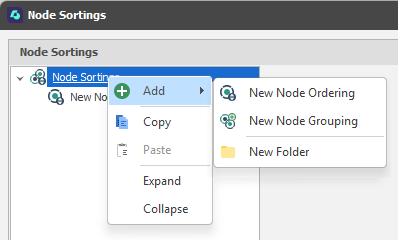
If you have previously added a New Folder, you can also right-click to add a Node Ordering or Grouping to that folder.
-
A New Node Ordering or New Node Grouping is added in the navigation pane. If necessary, right-click to Rename the Node Ordering or Node Grouping you have added.
-
When you have clicked to select a Node Ordering or a Node Grouping, right-click to Add Node Ordering or Node Grouping Entries.
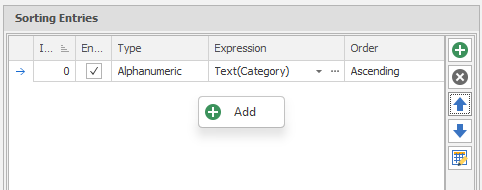
 Node Sorting Entries
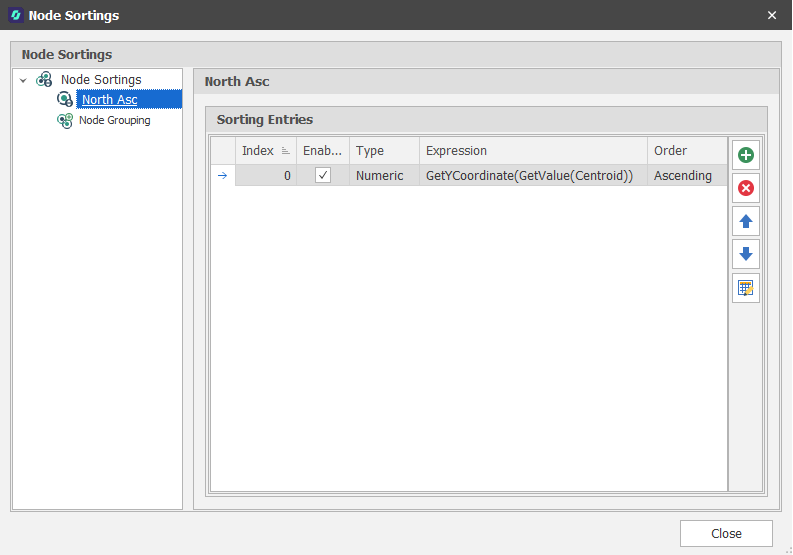
Ordering entries comprise of an (Alphanumeric, Numeric, Text) Sort Type, a Sort Expression used to sort Table Nodes based on their positions and attributes, and an (Ascending, Descending) Sort Order.
The Sort Expression will typically reference an attribute to order by:
GetYCoordinate(GetValue(Centroid))

|
Add a new item to the list. |

|
Delete the item(s) currently selected in the list. |

|
Move the currently selected item(s) Up to reorder the list. |

|
Move the currently selected item(s) Down to reorder the list. |

|
Use a Wizard to semi-automate the process. |
Enabled
The Enabled check box can be used to include or exclude entries. Use the local toolbar to manage the list of entries. Copy/Paste, Insert Copy and Move options are available when you right-click on an Entry.
Node Grouping Entries
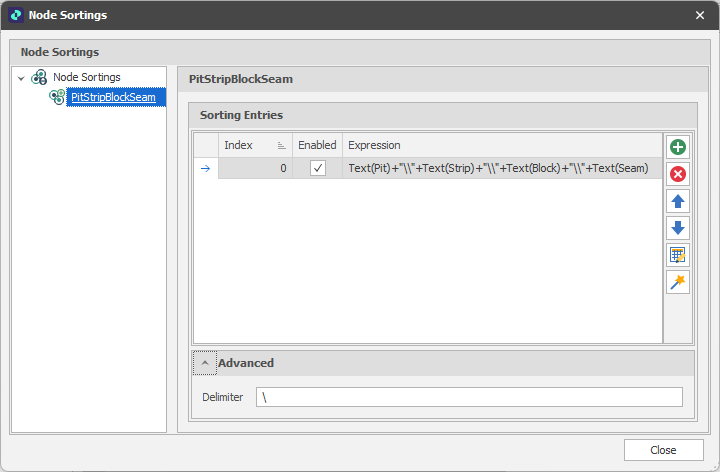
Node Grouping entries comprise of a Group Expression used to group Table Nodes based on their levels, positions and attributes:
|
|
Add a new item to the list. |
|
|
Delete the item(s) currently selected in the list. |
|
|
Move the currently selected item(s) Up to reorder the list. |
|
|
Move the currently selected item(s) Down to reorder the list. |
|
|
Use a Wizard to semi-automate the process. |
Enabled
The Enabled check box can be used to include or exclude entries. Use the local toolbar to manage the list of entries. Copy/Paste, Insert Copy and Move options are available when you right-click on an Entry.
Advanced
Delimiter
The delimiter is a text string which defines how a single group key is created from the grouping expression entries.
For example: If you have two entries A and B that evaluate to text “A.” and “B.” respectively, the delimiter tells you how to join those evaluations together into a single text key.
If the delimiter is “/” then the group key will be “A./B.”.
If the delimiter is “,” then the group key will be “A.,B.”.
This is only important if the evaluation of the grouping entries results in specific characters that could be confused for a delimiter.
For example: If you have two entries A and B that evaluate to text “A/B” and “.”, respectively:
If the delimiter is “/”, then the group key will be “A./B.” (the same key as shown in the first example).
Node Grouping Functions
The GetNodeGroupingKey function may be referenced in expressions, for example, when setting the filter condition for a colour set in Source Solids Colours based on a node grouping.
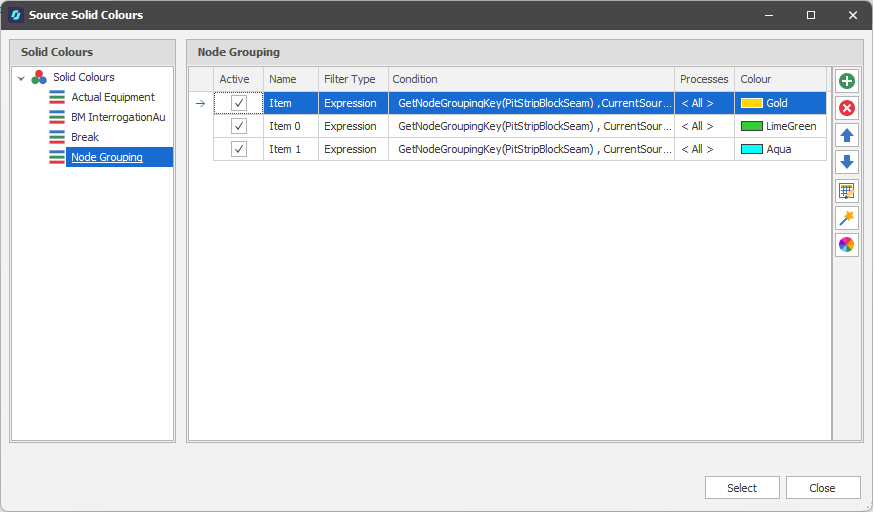
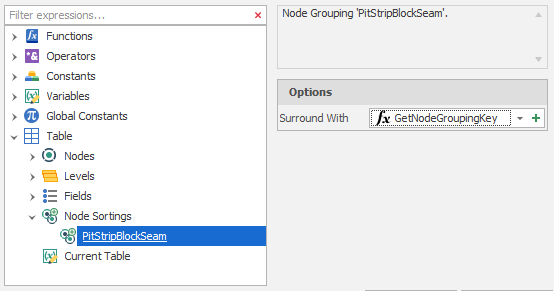
The function takes a TableNodeGrouping constant, a node from which to retrieve the grouping key (defaults to CurrentNode) and a safe value is optional.
GetNodeGroupingKey(NodeGrouping nodeGrouping, [Node node], [string safeValue])
TableNodeGroupingKey
A TableNodeGroupingKey function can be used to return the NodeGrouping Key for a specified Table, Node Grouping and Node, or the ValueIfError if an error is encountered. Node Grouping Aggregation functions may also be used in expressions to summarise table data.
For more information see: Node Grouping Functions
Close
Click Close to close and save your changes.