

New Symbol Palette
As well as the True Type™ symbol fonts provided with the application, there are a number of other readily available industry fonts. The symbols contained in different ASCII and Unicode fonts can be collated in a Symbol Palette. This means that you can display symbols with a common theme but from different sources.
There is no practical limit on the number of palettes that you can create nor is there any limit on the number of symbols in each palette.
To create a new Symbol Palette:
-
On the Home tab, in the Symbology group, select Symbol Sets | Edit Symbol Palette.

-
On the local toolbar, click New

-
Use the Location drop down to select the location for the new Symbol Template:
-
Defaults: The default Environment folder in the application installation location.
-
User: The user-specific (local) Environment folder for the application installation.
-
Project: The current project directory.
-
Custom: A specified location outside of the three known locations.
-
By default, the symbol palettes accessed by the application are located in your User Profile Folder at:
%AllUsersProfile%\Micromine\Micromine\Environment\Symbol Palettes
-
Enter the Name of the symbol palette file you want to create.
-
A new (empty) palette is created. Use the Add
 tool to add symbols to the palette: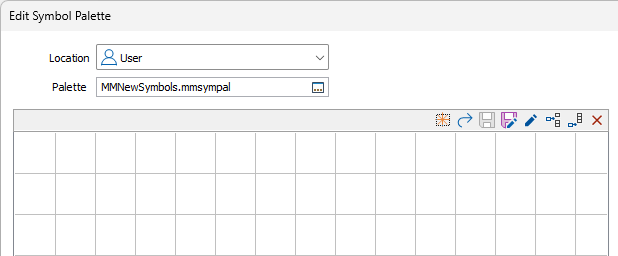
-
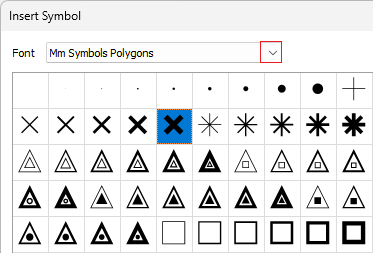
As you Add symbols to the palette, you can choose from a list of True Type Fonts (TTFs).
If you want to select multiple symbols, use the CTRL key or the SHIFT key as you click to select them with the mouse.
-
Finally, click Save
 to save the changes you have made to the palette.