Edit Symbol Palette

Palette
On the local toolbar, click New to create a New Symbol Palette. Alternatively:
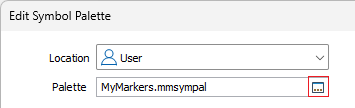
Click on the Select icon to select a palette (or accept the default). In addition to the Default symbol palette, several themed symbol palettes are available for selection. The symbols included in these palettes have been collated from one or more Unicode True Type Fonts (TTFs).
A local toolbar makes it easy to edit, load and save symbol palettes and quickly add, insert or delete symbols.
|
|
Create a New symbol palette. |

|
Open an existing symbol palette. |

|
Click Save to save the changes you have made to the palette. |

|
Click Save As to save the symbol palette under a new name. |

|
Edit the selected symbol. This will open the Select Symbol dialog and you can modify the symbol in the palette. |

|
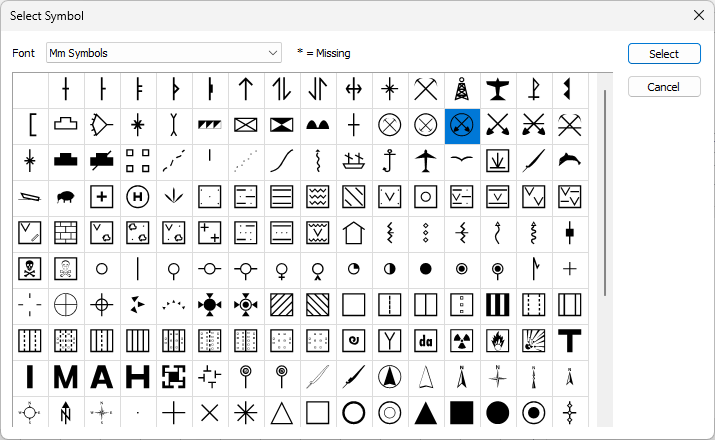
Add symbols to the palette. A Select Symbol dialog is opened. To add multiple symbols, use the CTRL key or the SHIFT key with the mouse as you select them. |

|
Insert symbols into the palette rather than add them to the end of the palette. Select the symbol immediately after the location of the symbol you are inserting |

|
Delete selected symbols. To delete multiple symbols, use the CTRL key or the SHIFT key with the mouse as you select them. |
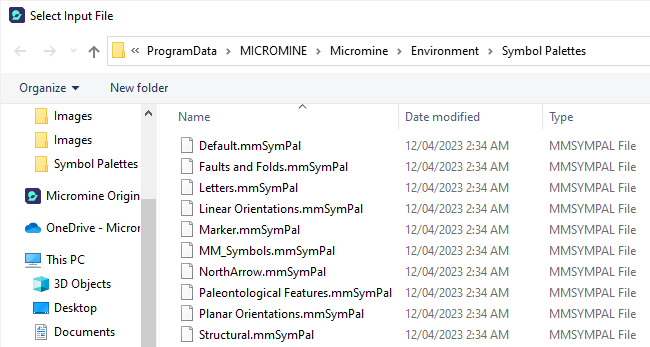
The last palette that was selected will be displayed when you re-open the Edit Symbol Palette window.
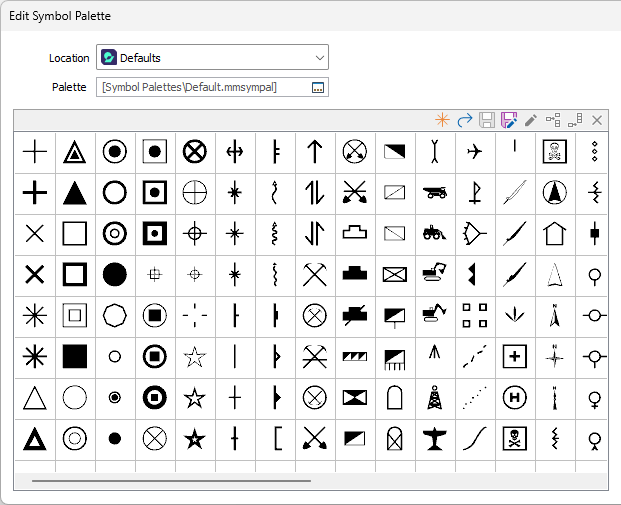
Symbol name and Description
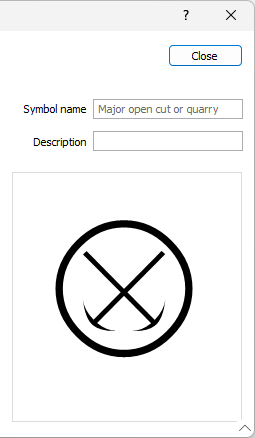
When you select a symbol, the symbol name and description (if any) are shown and can be edited:
Double clicking on a symbol in a palette will open the Select Symbol form to the font and the selected symbol and you can change the symbol: