Time Credits Usage Report
The Time Credits Usage Report tab of the Reports page provides information on the historical usage of the time credits consumed by User or by Licence.
Time credit licences are beneficial for organisations with a large number of users who may utilise the software for short periods of time, such as an hour session per day.
With a Time Credits licence, time to be used for sessions can be purchased and consumed, as well as reported on.
Time credit licences cannot be borrowed unless they are a hybrid overallocation licence which contains assignable seats. In the Licence manager, overallocation licences will be displayed with the time credit balance and the available seats:
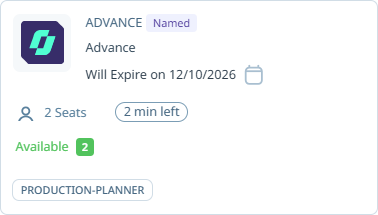
As soon as a seat is released, the consumption of time credits will be stopped and a seat can be assigned for use.
Note: Time credit licences are currently supported for Micromine Spry and Micromine Advance only.
-
Click Time credits usage report on the menu at the left to navigate to the Time credits usage report page.
The Time credits usage report page consists of the Time credits consumptions graph.
Time Credits Consumptions
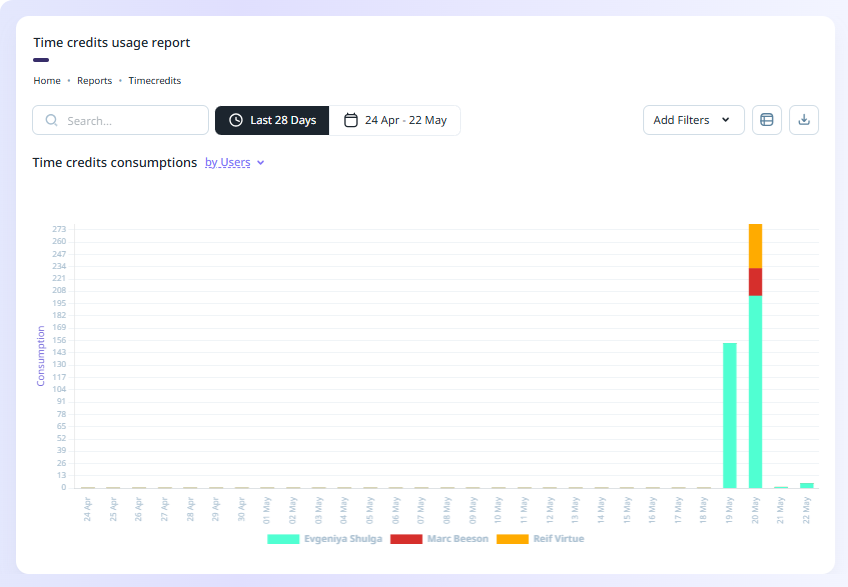
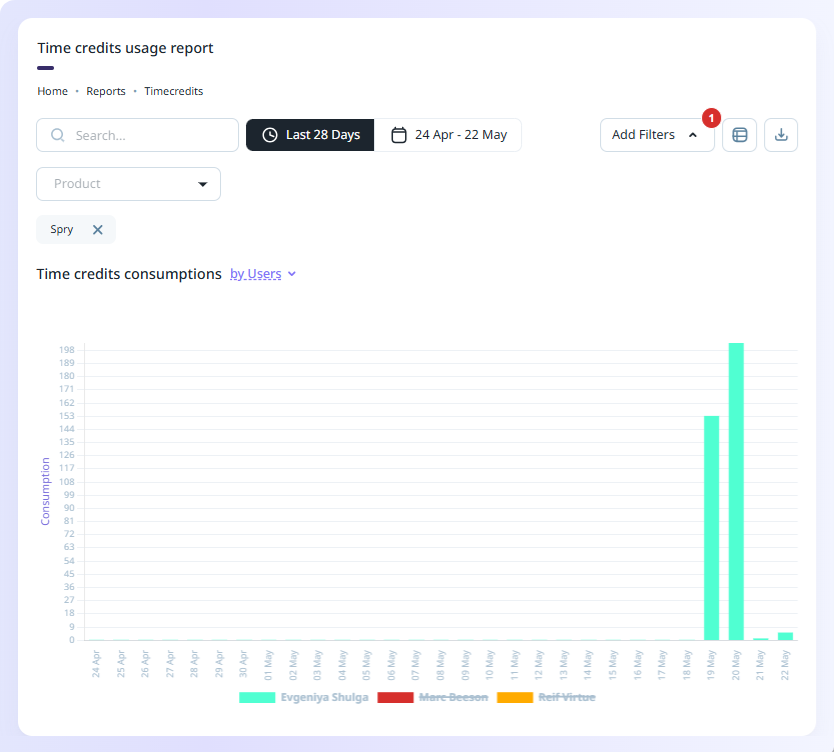
The report graph displays a representation of the number of time credit hours consumed across sessions for each licence or user over the selected date range.
The Date filter can be set to a selection of available time/date filters or a custom range of dates to filter the information.
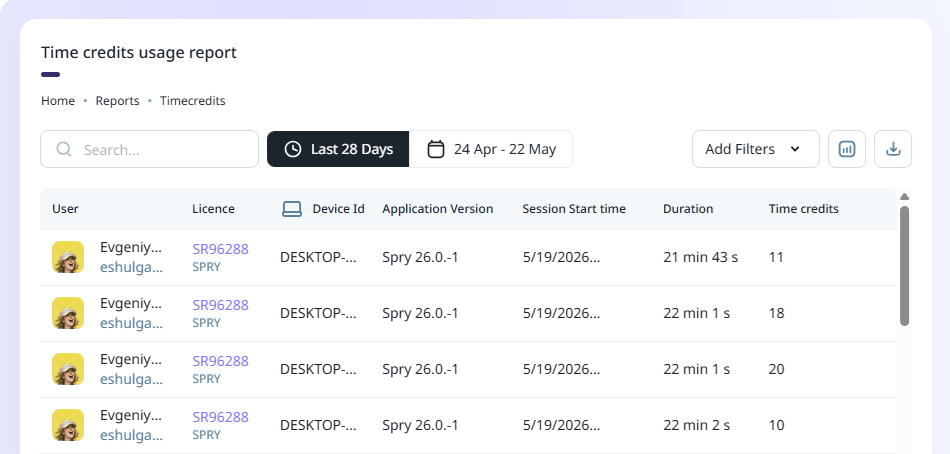
You can Switch to table view using the button at the top right above the graph:
As the table shows, the report contains information on each User, Device Id, Application Version, Session Start time, Duration and Time Credits used for the use of each Licence over the selected period:
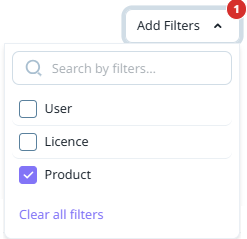
The Add Filters drop down contains options to enable the filters for the information.
In Graph view, you can further filter the information using the Legend label for each licence or user (dependent upon which view is selected from the Time credits consumption drop down). For example, if you click on a label to toggle it OFF, it will appear crossed out and the information for that licence/user will not be displayed in the graph.
In the following example, a Product filter has been applied and all except one users are removed from display:
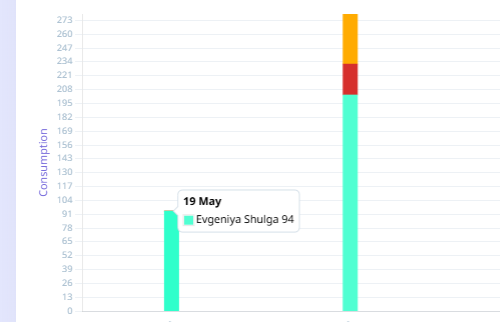
If you hover on a bar in the graph, the date of the usage and the licence/user will be displayed in a pop up:
The report can be saved to PDF or a CSV file using the Download menu at the top right:
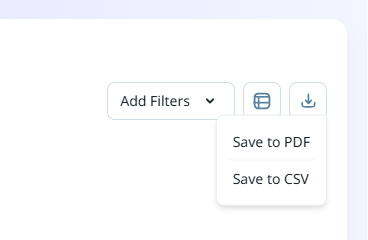
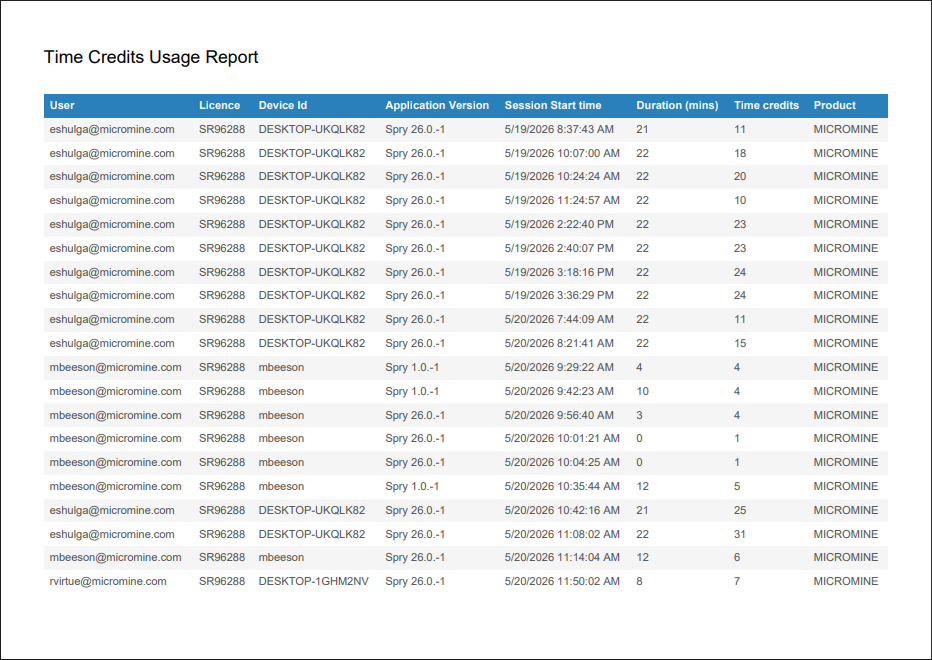
If you select Save to PDF, the report information will be saved to a graphical table in a PDF file, automatically named with the report name and saved to your Downloads folder.
If you select Save to CSV, the report information will be saved to a CSV spreadsheet, also named for the report and saved to Downloads.
For example, the Time credits usage report saved as a PDF: