Authentication

A Single-sign on (SSO) authentication can be configured to provide access to a range of services with a single set of credentials - such as your company email address. Nexus Home supports SSO authentication which can be configured from the Authentication page of the Licence Manager.

  1. Click Authentication on the menu at the left to navigate to the Authentication page.
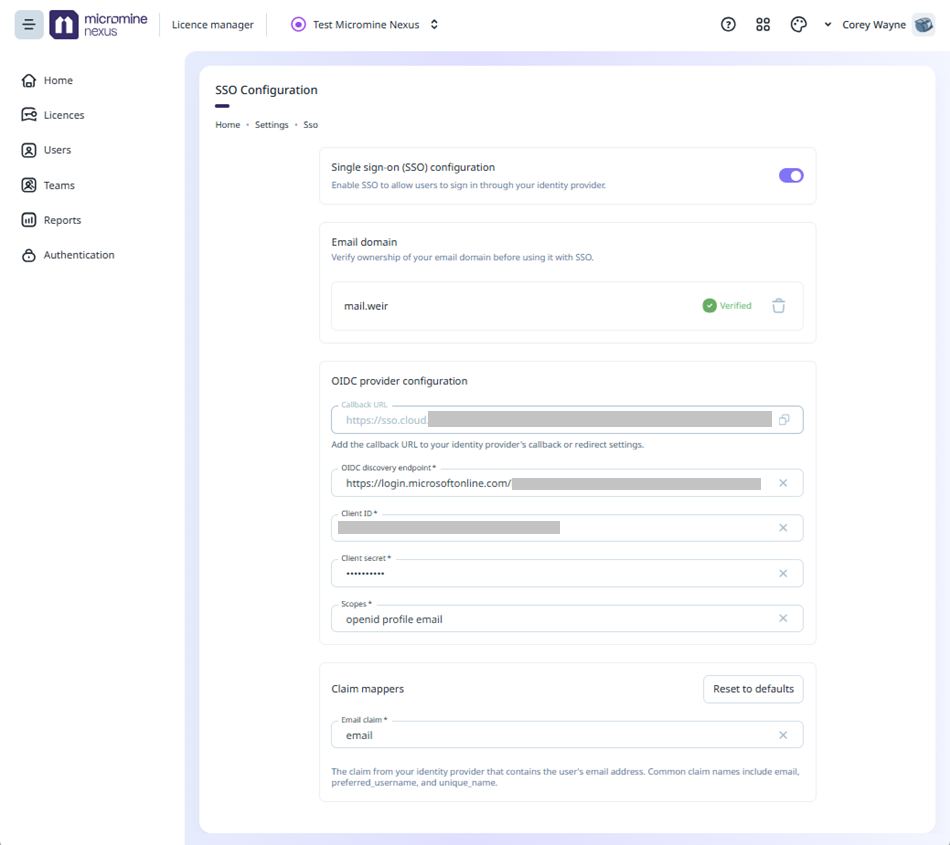
Before configuring the settings on the Authentication page for the first time, you will need to have set up OpenID Connect (OIDC) single sign-on (SSO) in Microsoft Entra ID. Ensure the registration and other configuration has been performed before proceeding.

Single sign-on (SSO) configuration

Use the toggle switch to enable SSO, allowing users to sign in through an identity provider.

Note: This option cannot be enabled until your domain has been verified.

Email domain

Enter the email domain for your SSO configuration - usually your organisation; for example, micromine.com

Click Add to add the domain to the Email domain field.

Click Save Changes to apply the domain.

With the email domain saved, the Verify domain button is enabled. Click the button to open the Domain verification form:

The Record Name and Record Value fields of the form will be automatically populated, as outlined to add the TXT record in your DNS. 

Click Start Verification to verify the domain.

OIDC provider configuration

OpenID Connect (OIDC) is an identity layer protocol which authenticates access to an application where a user or an app can be authorised for use (by the OpenAuth 2.0 protocol). OIDC providers operate an identification service which ID tokens. Trusted OIDC providers include Google, Microsoft, AWS and GitHub.

Callback URL 

A Callback URL is a redirect address from the OIDC provider which is opened upon successful identification / login.

Enter the Callback URL provided in the field.

OIDC discovery endpoint

The OIDC discovery endpoint is used by the application to collect metadata information that is required to communicate with the OIDC provider. The discovery endpoint is a document most commonly hosted by the OIDC provider and accessed using an address which must be entered in this field.

Client ID

Enter the Client ID for your OIDC Provider in the field provided. This is your username for the OIDC provider credentials.

Client secret

Coupled with the Client ID, the Client secret constitutes your credentials for the OIDC Provider service. Enter your 'secret' in the field provided.

Scopes

Scopes are entered to request information, known as a 'claim', about the user being authenticated. A scope determines the data and actions which the authenticated application can access or perform.

Enter the Scopes information in the field provided.

Claim mappers

The Claim mappers field is used to enter the claim from your OIDC provider which contains the email address of the user. Commonly, claims can include email, preferred_username, and unique_name.

Enter the Email claim for the OIDC configuration in the field provided. You can Reset to defaults using the button.

When the SSO Configuration is complete, click Save changes in the prompt at the bottom of the page:

To close the configuration without saving any changes, you can click Discard.

When SSO has been configured correctly, you will be able to login to Nexus Home using your single sign-on credentials.

Configure OIDC SSO in Microsoft Entra ID