

Managing User Messages
Select the Administration | Manage User Messages option to configure system messages that will be displayed on the left-hand side of the Logon screen for all users.
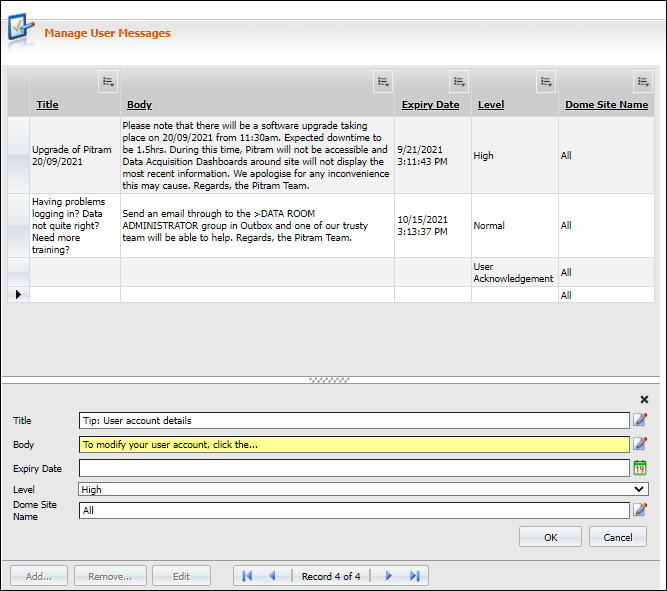
To add a new User message, click the Add button to enable the form.
Title
Enter a brief title that captures the purpose of the message.
Body
Enter further details of the message.
Expiry date
Specify when the message will be displayed by clicking the Calendar icon at the far right of the input box.
Level
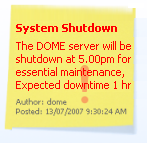
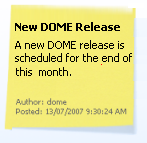
Select a (High, Normal, Low) level of importance from the drop-down list. To make users take notice, high level messages are displayed in a red font:
|
|
Language
Specify the language in which the message will be displayed.
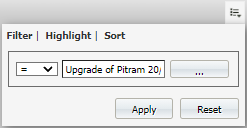
The messages displayed in the table can be filtered, highlighted (based upon
the filter conditions you define),
and sorted by expanding the column options
icons at the top of each column. Column options  allow you to format the
display of any tabular data.
The Edit button at the bottom of the Manage User Messages panel is used to place a selected user message in edit mode for changes to be made.
The Remove button will delete the selected message from the panel.