

Managing Users
Select the Administration | Manage Users option to grant or revoke user access to Pitram and to edit user account details. The users currently configured to use the application are displayed. A check box to the left of each user name, allows you to select one or more users before either removing those users, or performing other actions.
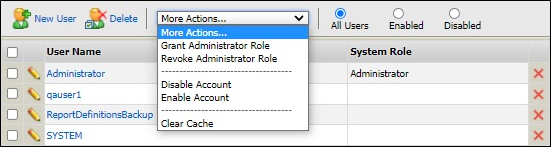
Use the More Actions... drop down menu to quickly revoked or grant administrator privileges, or enable or disable the account of one or more users selected using the check boxes alongside their names.
You can also select the Clear Cache option to clear all temporary files and memory allocations for selected users. Slower-than-usual access times may sometimes occur during heavy concurrent use of the system. Clearing the cache may help to improve performance. If problems persist, speak to your systems administrator.
Removing a user
Select the check box next to that user's name and click the Remove icon. You can delete multiple users by selecting more than one check box. Alternatively, you can click on the Delete icon (the red cross) at the end of each row to delete users individually.
Editing an existing user's account details
Double-click on the name of the user whose details you want to edit.
Adding a user
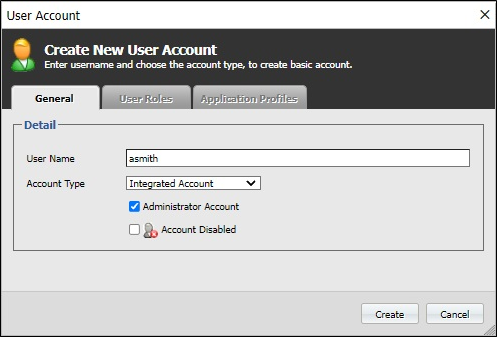
Click on the New User icon to open the User Account dialog. Complete the details on the General tab and click Create.
General
Username
Enter a username. If the account type is Integrated (See below) this will correspond to an existing Windows logon account.
Account Type
There are two options:
- Select Local Account if you want to limit that user to the Pitram application. You will be prompted to assign (and confirm) a password for the local user account. If this option is selected, the user will be unable to access other Windows services or network connections.
- Select Integrated Account to allow users to integrate their Pitram logon account with their Windows logon accounts. This means that they will have access to all Windows services and network connections.
Administrator Account
Select the Administrator Account check box to grant administrator privileges to the user. Administrator privileges can be revoked or granted using the More Actions... menu.
Account Disabled
There may be occasions when a user's access to the system needs to be suspended without having to delete that user. This can be easily achieved by selecting the Account Disabled option. Multiple accounts can be quickly enabled/disabled using the More Actions... menu.
User Roles
The roles assigned to the user using the Administration | Manage Roles menu option are displayed on this tab.
User Applications
The applications and services made available to the user using the Administration | Manage Roles menu option are displayed on this tab.