

Loadrite Integration
Integration reference data groups can be configured to allow the retrieval of data from Loadrite scales and submit it as a Set Payload Event. The integration works in the following way:
-
Pitram Mobile is connected to the Loadrite device over a serial port (COM port).
-
Pitram Mobile listens to the Loadrite device and on the "NW" (New Weight) event, data is added from Loadrite to Pitram.
-
When an "NW" event is generated from Loadrite, Pitram will generate an event (event based on reference data settings).
To configure the Loadrite for use with Pitram, the first step is to set up the integrations that will be mapped and configured.
Reference Data
Two reference groups are required to configure Loadrite:
-
LoadriteProfile
-
MobileUnitConfiguration
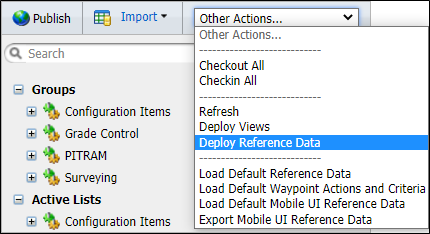
To make sure these groups are deployed open Pitram Portal and select the Reference Edit service.
From the Other Actions menu, select Deploy Reference Data.
In the Reference Data Deployment dialog, ensure the LoadriteProfile and MobileUnitConfiguration groups are selected.
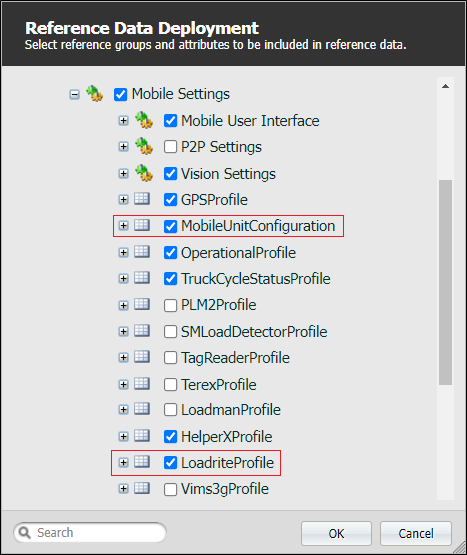
Note: Ensure that the LoadriteProfile option in the MobileUnitConfiguration branch is selected for deployment.
Click OK to deploy the relevant reference data.
Loadrite Profile
With the reference data deployed, the Loadrite profile can be created for the integration. To do this, in the Reference Edit service, click on Configuration Items > Mobile Settings > Loadrite Profile.
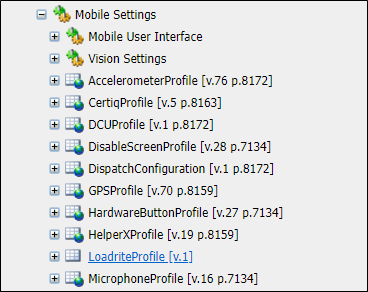
The Loadrite Profile screen is displayed.
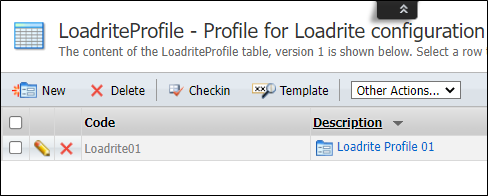
The Loadrite Profile screen lists the existing profiles. To create a new Loadrite Profile, Checkout the table and click New.
The Loadrite Profile contains the following attributes:
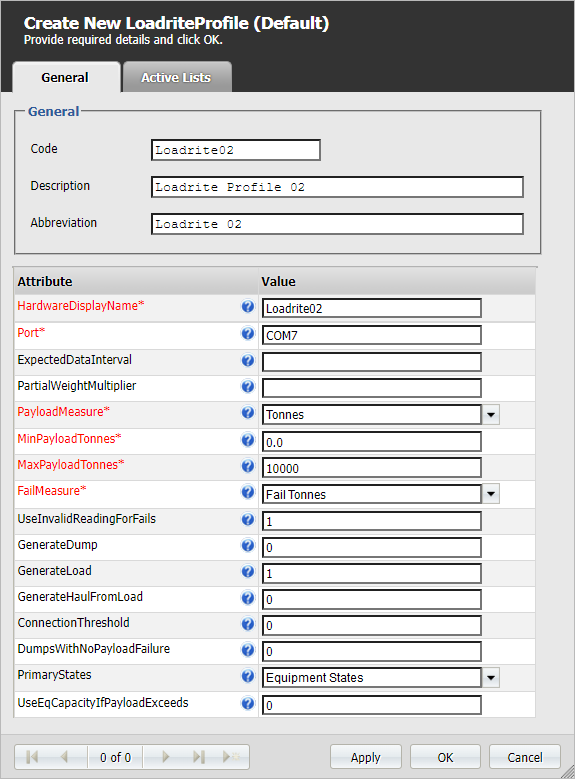
| Attribute Name | Description |
|---|---|
| ConnectionThreshold | The time, in seconds, before a record from the Loadrite device will be ignored when determining the connection status. Defaults to 0 seconds. |
| DumpsWithNoPayloadFailure | The number of sequential dumps without a Loadrite payload reading before the device switches to failure mode. Specify 0 to turn off. |
| ExpectedDataInterval | Amount of time (in seconds) with no data received before the Loadrite device will fall into a medium health state. Defaults to 300 seconds. |
| FailMeasure | The measure code against which failed measurements are recorded. |
| GenerateDump | Determines whether Pitram will automatically generate a dump event after receiving a payload. Defaults to off (0), specify 1 to turn on. |
| GenerateHaulFromLoad | Determines whether to record a haul event on successful load. Defaults to on (1), specify 0 to turn off. |
| GenerateLoad | Sets whether to record a loading event when a payload is received. Defaults to on (1), specify 0 to turn off. |
| HardwareDisplayName | The display name for this Loadrite device in Pitram Mobile. |
| MaxPayloadTonnes | The maximum tonnes reading to be considered valid for generating a payload dump. |
| MinPayloadTonnes | The minimum tonnes reading to be considered valid for generating a payload dump. |
| PartialWeightMultiplier | The value to multiply the partial weight by to convert to tonnes. Defaults to 1. |
| PayloadMeasure | The measure code against which payload measurements are recorded. |
| Port | The communications port to which the Loadrite device is connected. Include prefix "COM" if it is a COM port (e.g. COM7). |
| PrimaryStates | The list of primary statuses suitable for generating a valid payload event and other related events. |
| UseEqCapacityIfPayloadExceeds | Whether to use equipment capacity if Loadrite payload exceeds the maximum value. Default off (0). |
| UseInvalidReadingForFails | Whether to record an invalid tonnage (exceeds min/max) if received from Loadrite, or record an error tonnage of 1. Defaults to on (1), specify 0 to turn off. |
Click OK to save the new Loadrite Profile. With the profile created, the Mobile Unit Configuration can be configured.
Mobile Unit Configuration
In MobileUnitConfiguration, the LoadriteProfile attribute needs to be set for the equipment to use the LoadriteProfile reference group.
In the Reference Data tree view, click on the Mobile Settings reference group and click MobileUnitConfiguration. The Mobile Unit Configuration screen will open.
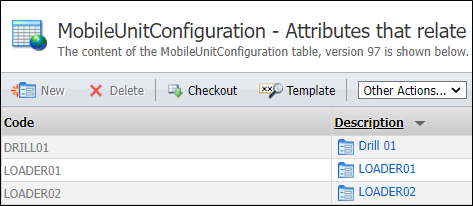
Checkout the table and open the Mobile Unit Configuration for the Loadrite Profile.
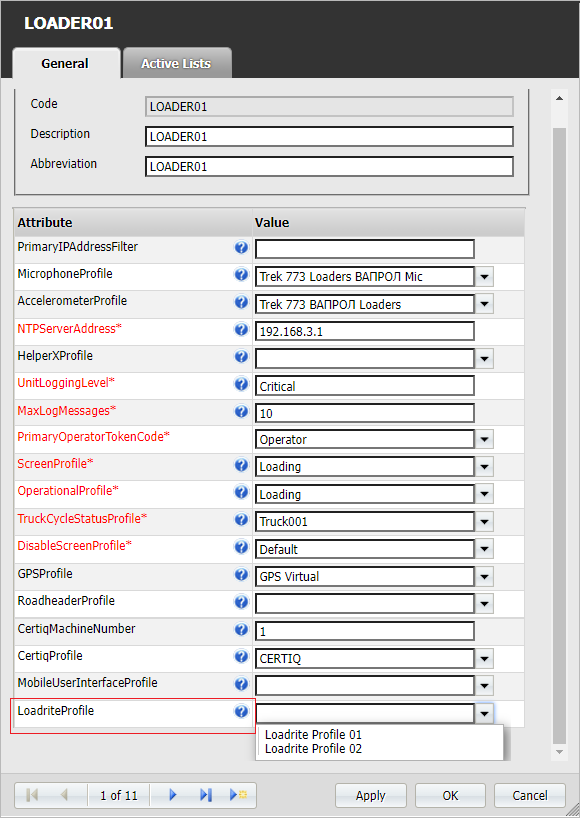
Select the relevant Loadrite Profile from the drop down.
Click OK to save the changes to the Mobile Unit Configuration.
Pitram Mobile User Interface
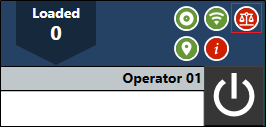
When the Loadrite profile configuration has been correctly implemented, Pitram Mobile will display a new icon for weighing:
Hardware Diagnostics in Pitram Mobile will also display the Loadrite profile (the value of the HardwareDisplayName attribute from the LoadriteProfile reference group).
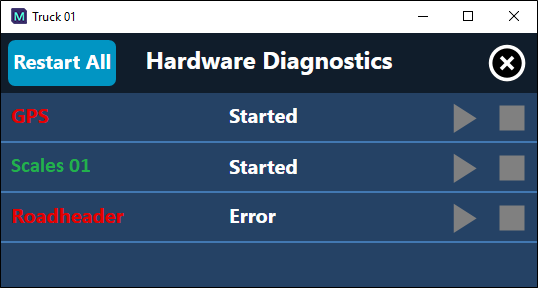
Diagnostics for Loadrite display the following:
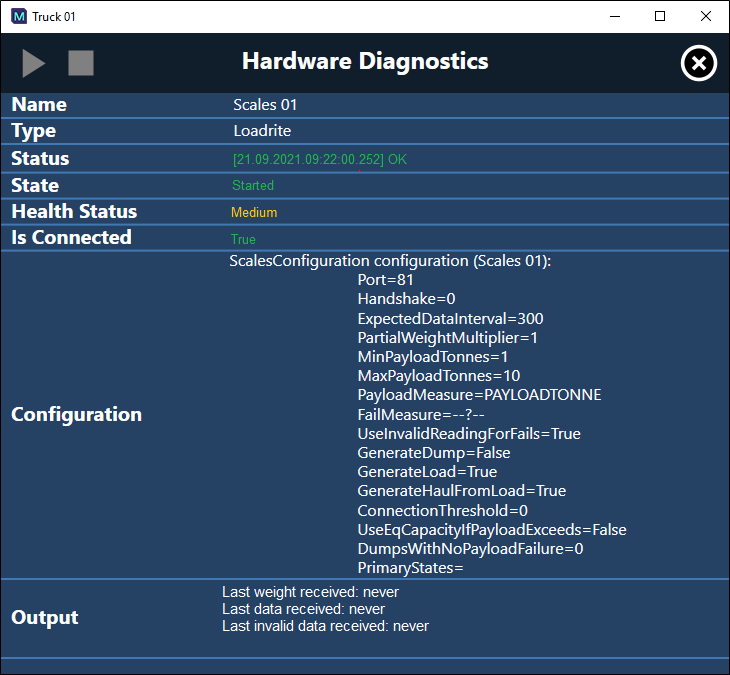
You should be able to scroll down and see the displayed numbers update as they are changed.
Logs
For troubleshooting, debugging and other related purposes; logs are created. The most relevant logs to the Loadrite configuration are located with other MDU logs (e.g. C:\ProgramData\Micromine\PITRAM\Logs).
Loadrite logs are named by date, port or profile, for example:
-
2021-09-21-mdu_Port_COM7.log
-
2021-09-21-mdu_Loadrite.log