

Open
Plot Files

Windows Explorer will open and you can use navigate to the folder containing your plot files to open a:
- Plot Document (*.PEX)
- Plot Template (*.PTX)
- Version 11 Plot (*.PEL)
Select Open | Append to combine two or more plot files into a single file.
Templates
Select Open | Open Template to open a plot template file in the Plot Editor.
This will open the Open Template dialog:
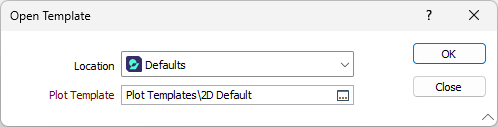
Use the Location drop down to select the root of the associated plot file.
-
Defaults: The default Environment folder in the application installation location.
-
User: The user-specific (local) Environment folder for the application installation.
-
Project: The current project directory.
-
Custom: A specified location outside of the three known locations.
Double-click (or click on the Select icon) to select a plot template from your selected location.
If the Defaults location is selected, you can accept the automatic location. The application provides a number of predefined standard layouts you can use as the basis for your plots.
Layouts
Select Open | New Layout to select a template and use it as the basis for a plot layout. See: New Layout
There is a limit (50) on the number of Plot Documents that can be open in the Editor at the same time. This applies to documents opened from the Plot menu, or documents opened from a script or macro.
Select Open | Import Old Layout to import a Plot Editor form set created in an earlier version of the Plot Editor.
Select Open | Export to export a plot layout (.pex) file to a variety of image and CAD/GIS formats.