

New Layout

- In the New layout dialog, select the From Template option:
-
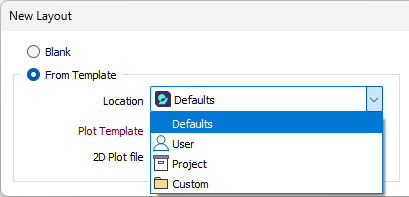
Use the Location drop down to select the root of the associated plot file.
-
Defaults: The default Environment folder in the application installation location.
-
User: The user-specific (local) Environment folder for the application installation.
-
Project: The current project directory.
-
Custom: A specified location outside of the three known locations.
If the Location is set to Defaults, the location of the default plot templates will be automatically entered in the Plot Template field. .
-
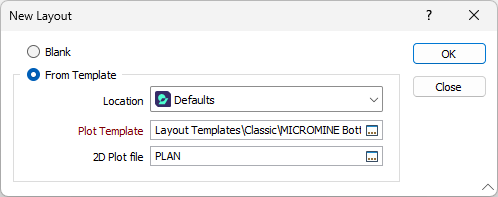
Standard templates are available for selection in the \Environment folder of the User Profile Folder: %allusersprofile%\Micromine\Micromine\Environment
- Double-click in the input box or click the ellipsis button to select a Plot Template (.PTX) file.
If necessary, navigate to a different folder and select the template you want to open.
- Optionally, select a 2D Plot file (a .PEL file created in earlier versions of the application). This is a quick way to create a new layout from a plot template and an old 2D plot.
- Click Open.
To generate a plot using a template:
-
Select Generate Plot File on the Home tab or the Vizex tab, in the Plot group.
-
In the Generate Plot File form, select the Auto load check box option and double-click to select a template.