

Text Colour Sets
There is no undo facility when you edit colour sets, hatch sets, line sets, or symbol sets. If you want to be able to undo any future changes or deletions, you should first use the Save As button to save your current settings as a form set which can be re-loaded.
To define a colour text set:
- On the Home tab, in the Symbology group, open the Text Colour Sets form.
You can also open the Text Colour Sets form by right-clicking (F4) in the Colour Set response in a form or dialog (when the Colour field you have selected is a Character field).
- Enter or select the text codes you want to use. You can either use the Assign to Text Sets tool to extract text codes automatically or you can enter them manually. You can then select and group these codes into the combinations you require. You can also use Wildcards to match multiple codes.
- Either use the automatically generated labels or edit them further to suit your requirements. The text that appears in the Label column can be used in the legend frame of a plot.
- Allocate a colour to each text code by double-clicking (F3) or use an existing palette. Use the buttons on the local toolbar to Manage the rows in the list.
- Click Save As to save your changes as a new form set. Click Save and Close to save the current form as the default form set and close the Edit Colour Sets form.
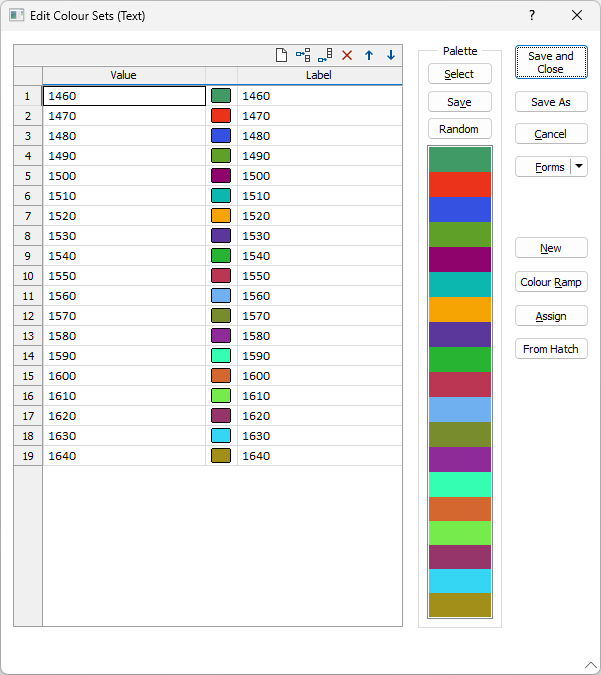
Text Colour Grid
Value
Double-click (or click on the Select icon) to select the text codes you want to use. Remember that you can use Assign to Text Sets to find all of the text codes in the nominated field. You can then select and group those codes into the combinations you require. Use the pipe symbol "|" to separate text codes in the same row of the text column.
Colour
Double-click (F3) to allocate colours to the text codes. Alternatively, you can select an existing palette (see below).
On the right-click menu, you can:
- Select Change Selected Colours or Change All Colours to modify the colours of ALL rows or SELECTED rows only.
- Select Fill With Random Colours to apply random colours to the entire colour set.
Note: When generating random colours, the application will use the Vizex background colour as both a colour to avoid and as the contrast / background reference for visual clarity. This means dark backgrounds generate lighter, slightly softer/pastel colours, and light backgrounds generate darker, more saturated colours. Mid-tone backgrounds rely mostly on contrasting colours.
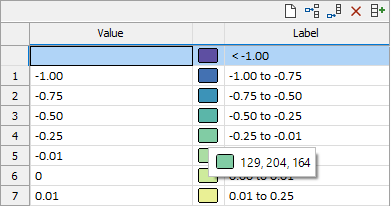
If you hover on a colour in the grid, a tool tip containing the RGB value for the colour is displayed:
Label
If you use Assign, labels are automatically generated, based upon the entries in the Text column. These default labels can be changed if necessary. In the Plot Editor, these labels can be loaded into the Description column of a Legend frame.
Palette
You can set a Default colour for the palette by double clicking in the colour square.
Use the drop down list provided to select the element to which your palette applies - Foreground, Background or Border.
The colours you assign to the ranges in a colour set or a hatch set can be saved as a palette, which is simply a list of RGB colour values. When you click the Select button in an Edit Colour Set or Edit Hatch Set form, an extensive range of system palettes are available for selection. See: Colour Palettes
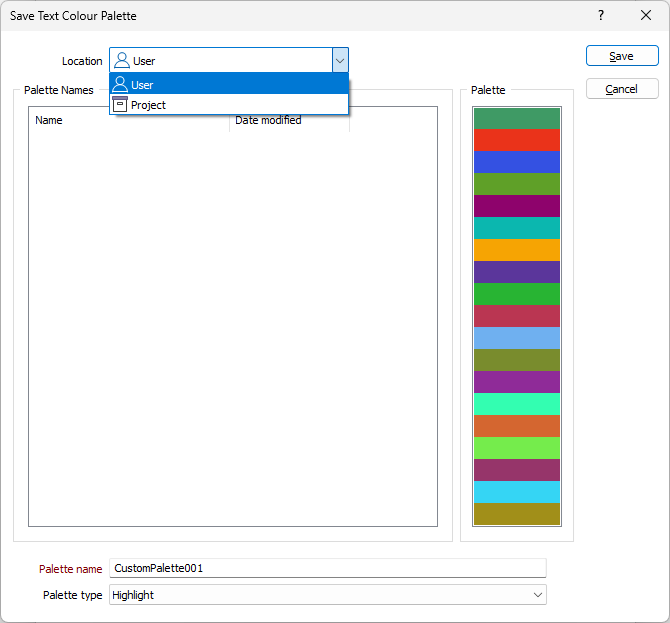
The Save button in the Palette section opens a form used to save the current colour palette details to a location with a specified name and type:
The Random button will assign random colours the palette that can be applied. You can click the Random button again to change the colours in the palette each time. See note on random colour assignment in the Colour section above.
Forms
Click the Forms button to select and open a saved form set, or if a form set has been loaded, save the current form set.
New
Click the New button to open a blank colour set form and create a colour set using the options on the local toolbar.
Colour Ramp
Click the Colour Ramp button to ramp the colours of the ranges (or bins) you have selected. The colour of those ranges and the palette display will be refreshed.
Assign
Click the Assign button to automatically extract all the text codes from a field in the file. You can select and group the text codes, either manually, or by using Auto group. See: Assign to Text Sets
From Hatch
Click the From Hatch button to create a colour set from an existing hatch set. See: Convert Hatch Set to Colour Set
Configured Colour sets can be displayed as a Legend for the layer in Vizex. See Display a legend.
Save As
Click Save As to save your changes as a new form set. See: Save As
Save and Close
Click Save and Close to save your changes as the default form set and close the form.
Cancel
Click the Cancel button to close the form without saving your changes. Note that the Edit form will always show the last changes that were made. To revert back to where you were before changes were made, you will need to re-load a saved form set. If your original settings were not saved as a form set, they cannot be recovered.
Default Auto CAD Colour Index (ACI) numeric and text colour sets are included in the template for new projects and are copied to older projects when they are upgraded.