

Form Set Unlock
If form sets have been locked, you can unlock them and optionally unlock all referenced form sets (if they were also locked). If you are not the owner of the lock, you should contact the original author to discuss the changes you want to make before unlocking the form set.
If you are the owner of the lock, you may override the lock (save your changes to the corresponding form without unlocking the form set).
To unlock one or more form sets:
- Select Tools | Form Sets | Manage.
In Vizex, you can also unlock form sets in the View | Vizex Form Sets Pane.
- Select the form sets you want to unlock. To select multiple form sets, use the CTRL or the SHIFT key with the mouse.
- Select the right-click Unlock Form Set menu option to open the Form Set Unlock dialog:
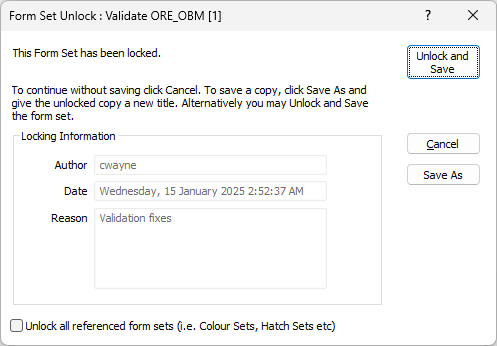
Author
The user who has locked the form set. Non-editable.
Date
The date and time at which the form set was locked. Non-editable.
Reason
The Reason field should indicate why other users are prevented from editing and saving the form set. Non-editable.
Unlock all referenced form sets
If this check box option is selected, referenced form sets were also locked when the parent form set was locked. You have the option to unlock them or keep them locked.
A form set may contain embedded references to other form sets, including colour sets, hatch sets and symbol sets, etc. If a form set is referenced by other form sets its Title is shown in Italics.
Unlock and Save
To save your changes and unlock the selected form set(s), click Unlock and Save.
If you are not the owner of the lock, you will be prompted: "Before you Unlock and Save, please contact the original author to discuss the changes you want to make."
Override Lock
If you are the author of the lock, have made changes, and want to save your changes without unlocking the form set(s), click Override Lock.
If you are not the author of the lock, you cannot override it.
Save As
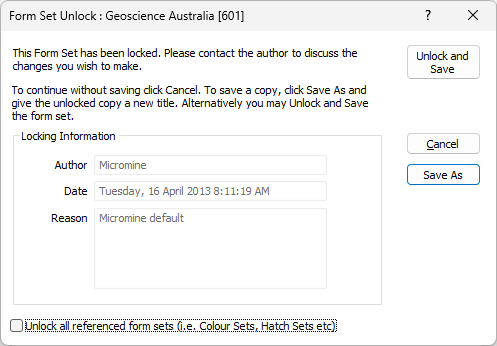
To save your changes as a new form set, click Save As.
Cancel
To continue without saving your changes, click Cancel.