

Realisations
When the Semi Variograms form has been opened from Conditional Simulation results, the Realisations tab is enabled.
Use the Realisations tab to configure the Simulation file and the Data Fields for the realisation data. The values in the Realisations tab are pre-populated from the Conditional Simulation results.
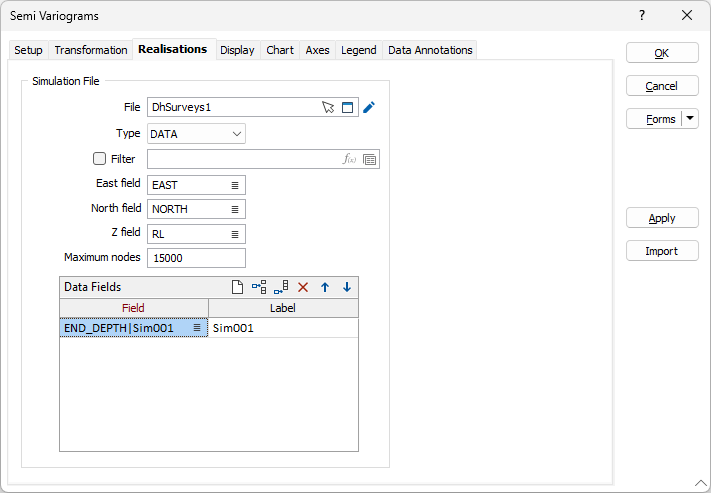
Simulation File
File
Displays the nodes file from the Blocks output for the Conditional Simulation results.
You can double click (F3) in the File field to select an alternative nodes file for the Semi Variograms. You can also click the Pick from Vizex button to collapse the form and interactively select a layer containing the file to be inserted and return to the form. Use the Apply button to update the Semi Variograms.
Optionally, select or create a filter to limit the data that is processed.
Easting, Northing and Z
Displays the names of the fields in the nodes file containing East, North, and Z coordinates.
Maximum nodes
Displays the maximum number of randomly selected nodes that was used for each realisation (with a hardcoded seed) from the Conditional Simulation run. You can modify this value and use the Apply button to update the Semi Variograms.
Data Fields
The Data Fields grid displays the attributes used in the Simulation settings of the Conditional Simulation run.
Use the buttons on the local toolbar to Manage the rows in the list.
Use the Apply button to update the Semi Variograms.