

Create Control File

The Select Output File dialog will open and you can select or create an output file for the Variogram Control File (.mmvarx) you are creating. Click Save to open the new file.
Model
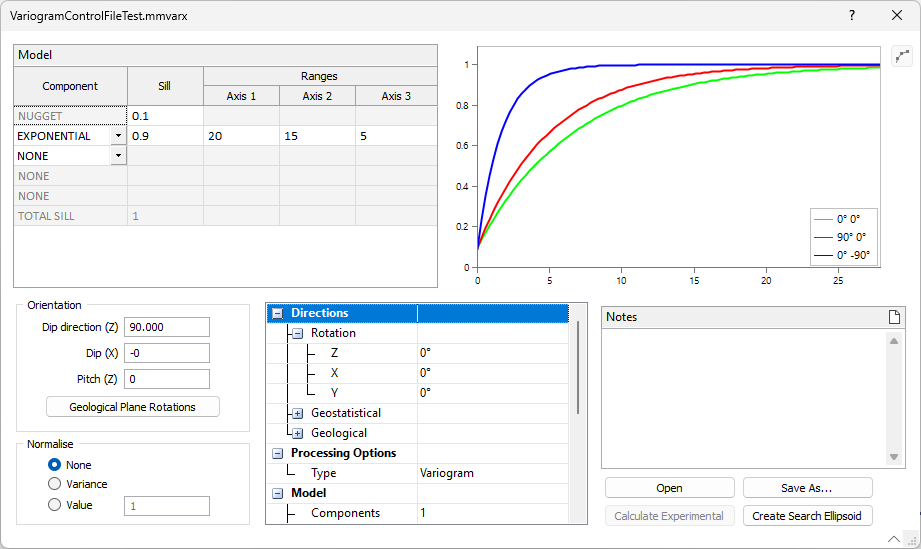
The Model grid allows editing of the variograms for the file. The default model is added to the details upon creation, and you can modify this if required, as well as change each Component cell in a blank row of the grid from None to a variogram model component to be configured:
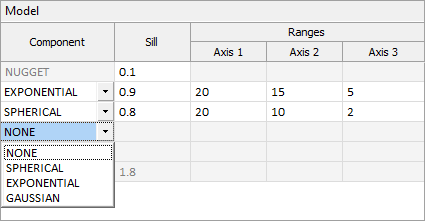
See: Types of semi variogram model
For each component in the variogram, enter the following:
Sill
Enter the Y coordinate (semi variogram) value of the sill for each component.
Axis 1, Axis 2, Axis 3
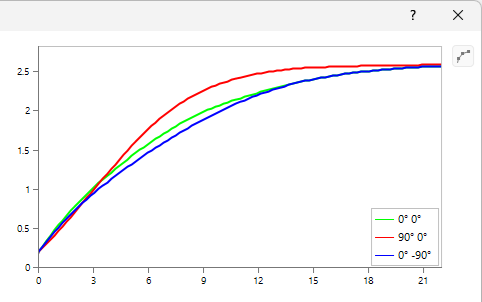
For each model component, enter the Axis values for Axis 1, Axis 2 and Axis 3. The preview window at the right of the grid will update dynamically as information is entered:
Orientation
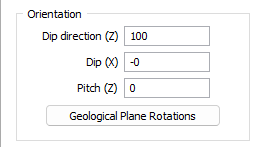
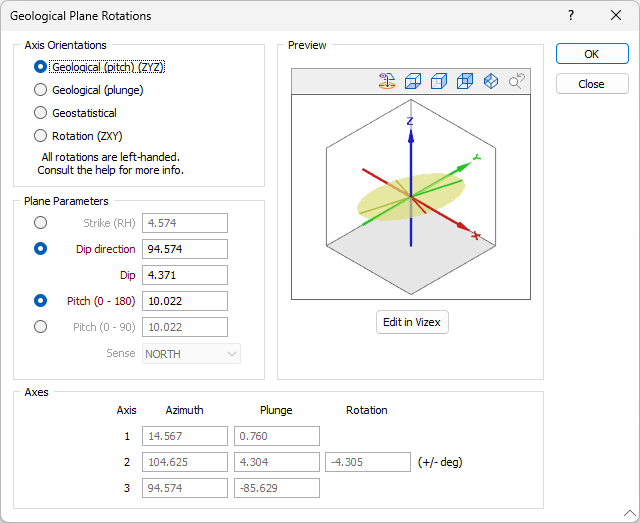
The Dip Direction, Dip and Pitch orientation values can be entered in the fields provided. For more information about Dip Direction, Dip and Pitch, refer to the Orientation and Geometry topic.
Geological Plane Rotations
Click the Geological Plane Rotations button to open the Geological Plane Rotations tool to view or edit the parameters used to set the orientation of a geological plane that can be applied to your variograms.
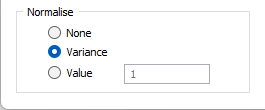
Normalise
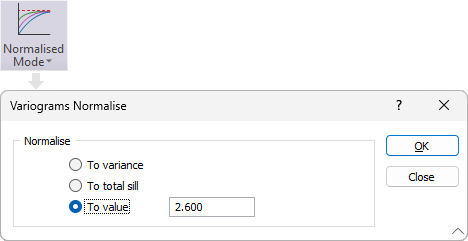
Changing or toggling the Normalise method will affect the Semi Variograms chart and the model parameters.
When the chart is open, you can also toggle Normalised Mode from the ribbon in the Variograms group:
See: Normalise
Details
The Details grid at the bottom centre of the form displays the details for the Directions, Processing Options, Model and History of the Variogram Control File.
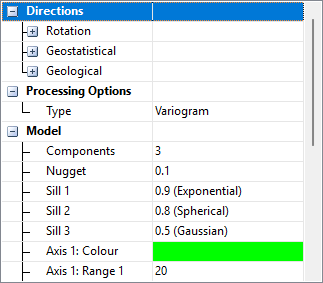
Details displayed in the grid are read-only, and will be updated dynamically as any changes are made to the form - such as adding a Model.
Notes
Use the Notes box to add notes for the Variogram Control File. The notes are saved automatically when you exit the Viewer.
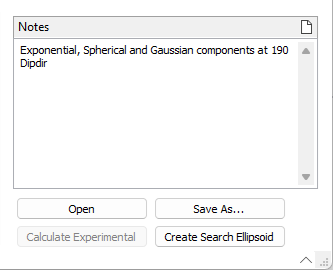
The Open button at the right of the viewer is used to open a different variogram control file for display.
You can save a copy of the current control file for display using the Save As button.
The Calculate Experimental button will display the experimental variograms created in the Variogram Chart and saved in the control file. If the experimental variograms were not created, and the input file information exists in the file, clicking the button will generate them.
The Create Search Ellipsoid button will open the Variogram Search Calculate form that allows you to configure search ranges using a percentage of total sill or from specified axis ranges.
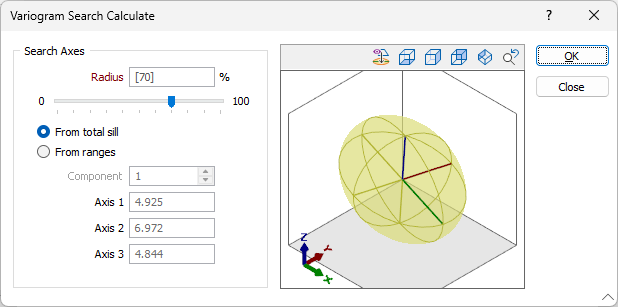
You can view the resultant search ellipsoid using the tools in the preview window at the right of the form.
Click OK when the ellipsoid has been configured as required. The application will prompt you to save a Data Search formset.
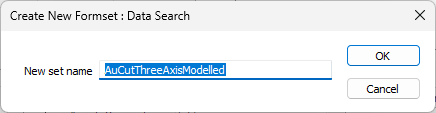
The formset will be populated using the directions and model ranges in the control file and be auto loaded to a Search Ellipsoid in Vizex.