

Expression mode
Use the Filter form to create or edit a filter. Filters are used to create subsets of your data. They are constructed by setting conditions that control which data is used from a data set.
In Expression mode, filters are evaluated using the rules and precedences that apply to field expressions:
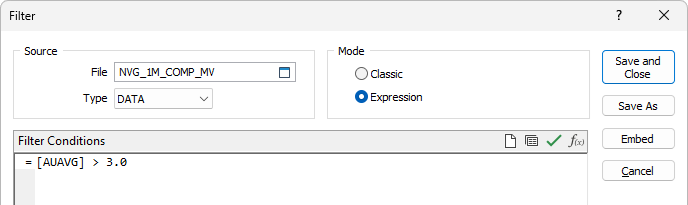
Source
If you are editing an existing filter, the name of the current file is displayed in the File input box.
If you are creating a new filter, enter or double click to select the file for which a filter will be created. Note that the name of the current (or the last used) file is automatically written in the File input box.
Records
(Optional) To limit the range of records on which the filter will operate, make entries in From record/To record. When left blank, the filter is applied to all records.
Filter Conditions
For each of the required conditions, you can enter an expression directly in the editor window.

|
Click the Clear button to clear the expression you have entered. |

|
Click the Validate button to check the syntax of the expression you have entered. |

|
For more complex expressions click the Expression Editor button to access the fields, variables, and functions you want to include in an expression. See: Expression Editor. |
| You can also create a complex filter in Classic mode and convert the filter to an expression by changing mode in the Filter form. |
Wildcards
Although you cannot use wildcards directly in an expression, a function to match values to a wildcard (or a regular expression) can be used:
