Classic mode
In Classic mode:
Filters are evaluated differently depending on the source data type (Character, Numeric, Binary or Date), the conditions entered into the filter grid (text, number, alphanumeric or blank), and the state of the Numeric check box.
Text containing numbers is handled in a logical way when making a greater than (or equal) or less than (or equal) comparison. The text DH100, for example, is considered greater than the text DH2; and DH2 is considered less than the text DH003.
Filter conditions that contain non-numeric values such as wildcards (for example, Equal 2018*) always trigger an alphanumeric check on Character or Numeric fields.
The meaning of REAL field values will change based on the state of the Numeric check box:
- When the Numeric check box is enabled, the value is compared at its full precision and wildcards are not supported.
- When the Numeric check box is disabled, the formatted number (as defined by the number of decimals) is compared. Wildcards are supported, but they are only valid for the Equal and Not equal operators.
The meaning of DATE field values will change based on the state of the Numeric check box and (with the exception of dates in ISO format) the locale.
- When the Numeric check box is enabled, the underlying OLE date number value is compared and wildcards are not supported.
- When the Numeric check box is disabled, the formatted date is compared alphanumerically. Wildcards are supported, but they are only valid for the Equal and Not equal operators.
If you are working in multiple regions, it is recommended that you enter a filter value in ISO format, irrespective of the format of the dates in the Source file.
This table summarises the various filter comparisons:
| Field Type | Filter Comparisons | |
|---|---|---|
| Numeric enabled | Numeric disabled | |
| Character Numeric | Numeric portion extracted from the field and used for comparison; other text is ignored. Blanks treated as NO DATA. | Formatted field content is used; numerical values treated as text. Blanks treated as text. |
| Binary Real | Number is compared at full precision of the data (ignoring displayed decimals). | Number is compared using the displayed decimals (as defined in the file). |
| Binary Short Binary Long | Number is compared as displayed. | Number is compared as displayed. |
| Formatted Date Formatted Date/Time | The underlying OLE date number is compared. | Formatted date content is used; numerical values treated as text. |
Source
If you are editing an existing filter, the name of the current file is displayed in the File input box.
If you are creating a new filter, enter or double click to select the file for which a filter will be created. Note that the name of the current (or the last used) file is automatically written in the File input box.
Records
(Optional) To limit the range of records on which the filter will operate, make entries in From record/To record. When left blank, the filter is applied to all records.
Filter Conditions
For each of the required conditions, enter a Field on which the condition will operate, select an Operator from the drop-down list, and enter a Value to be used in the operation. Use the buttons on the local toolbar to Manage the rows in the list.
Alphanumeric rather than string comparisons are used when (Not Equal, Greater Than, Less Than, Greater Than or Equal, Less Than or Equal) filter conditions are used.
If you want to treat fields as numeric values, select the Numeric check box. In that case only the numeric prefix of mixed alpha numeric strings is used. If you leave the prompt blank, values are considered to be of type Character.
When a numeric filter condition is used, characters that follow a number are ignored, for example, 200B evaluates to 200. If the first part of an entry in the field is not a number, for example, DH001, or is blank, it evaluates to 0.
When using the Contains / Does Not Contain operator:
- If the Numeric check box is off, and the value is a regular expression, it will be used for the filter.
- If the Numeric check box is on, values are converted to a number and regular expressions cannot be used.
When using True and False logical operators:
- A field expression can be evaluated and matched with True or False values.
Combine Lines
(Optional) To apply more than one condition, use logical (Boolean) and comparison operators. These define how the lines of filter conditions are combined. If you use the logical operator AND or the logical operator OR, then that operator will apply to ALL filter conditions. Condition1 AND Condition2 AND Condition3 for example.
To mix AND and OR operations select the EQUATION option, build the filter conditions and then combine the lines in the Equations field.
Wildcards
Wildcards can be used when defining values in filters. See: Wildcards

You can also add multiple filter conditions in a single operation by using field expressions:

Refer to the Logical and Comparison Operators topic for more information.
Reverse Filter
Sometimes it is easier to define a set of conditions for the records you do NOT want to use. Selecting Reverse filter will include records NOT defined by the filter conditions.
Dates
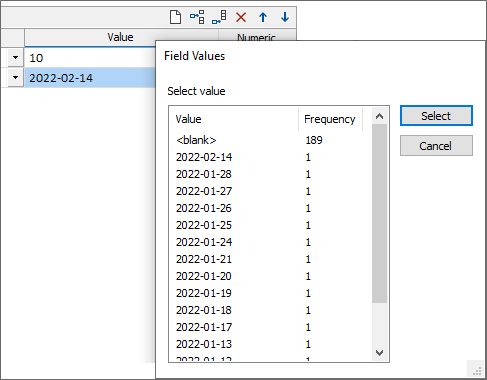
Date and Date/Time field values can be entered or selected: