

Expand DTM

Input
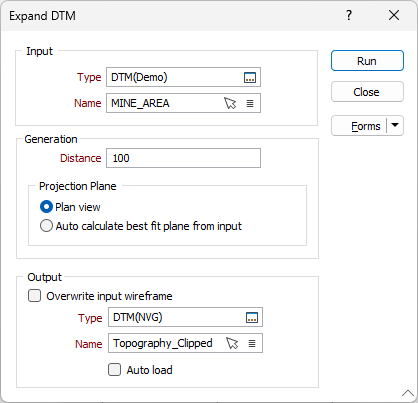
Select the type of the wireframe, typically DTM, and then enter (or double-click to select) the name of the wireframe that you want to expand. You can also use the Pick from Vizex button (or select the context menu option where available) to collapse the form and interactively select the required Wireframe to insert and return to the form.
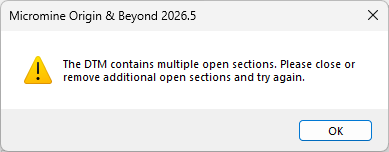
Note: The application will transform points to local space before rotation. If the specified input object has more than one open section, it will be determined invalid and an error will be raised.
Generation
Distance
Enter the Distance by which the Input DTM should be expanded in all directions to create the expanded DTM.
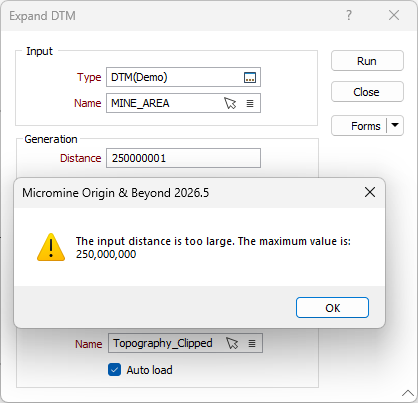
Note: Maximum input value for Expand DTM is 250,000,000. If you enter a higher value, the process will not begin and an error message will be displayed:
Projection Plane
Specify either Plan view (x,y plane) or Auto Calculate best fit plane from input to define the projection plane be used to determine the direction in which the DTM will be expanded.
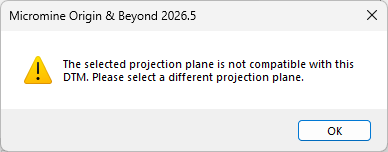
Note: If the selected projection plane is not valid with the specified input, an error will be displayed:
Output DTM
Select the type of the wireframe, and enter (or double-click to select) the name of the wireframe that you want to which you want to output the expanded DTM. You can also use the Pick from Vizex button (or select the context menu option where available) to collapse the form and interactively select the required Wireframe to insert and return to the form.
Auto load
Select this option to load the generated output in Vizex.
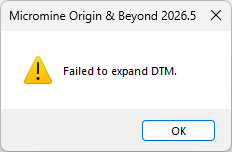
Note: If for any reason the input DTM cannot be expanded using the configured settings, an error will be displayed:
Run
Finally, click Run to begin the process.
Forms
Click the Forms button to select and open a saved form set, or if a form set has been loaded, save the current form set.
By design, the Forms button is not available for loaded Vizex layers (i.e. when opening the form set properties of a layer in the Vizex Layer Display pane). In Vizex, the Forms button is only available for new forms opened via the Home tab or the Vizex tab, in the Layer group (or by double-clicking on a form type node in the Vizex Layer Types pane).
Save and Save As
Click the Save button to save the changes you have made to the form set. Click Save As to save your changes as a new form set. Save As will default to the first available form set number.
Manage
Click Manage to open the Form Set Manager for the current form.
Reset
Click Reset to clear the form of all values and reset the form to its default state.
Reset Tab
For tabbed forms, select Reset Tab to clear the active tab of all values and reset the tab to its default state - without making any changes to other tabs in the dialog.
Undo and Redo
Click Undo (CTRL + Z) to undo recent changes in the form. After an Undo, click Redo (CTRL + Y) to restore the last change that was undone.
Collapse
Collapse (roll-up) the form to preview a chart, or preview the results of an operation in Vizex, or obtain input values from Vizex, the Property Window, the File Editor, or the Plot Editor.