

Assign Attributes

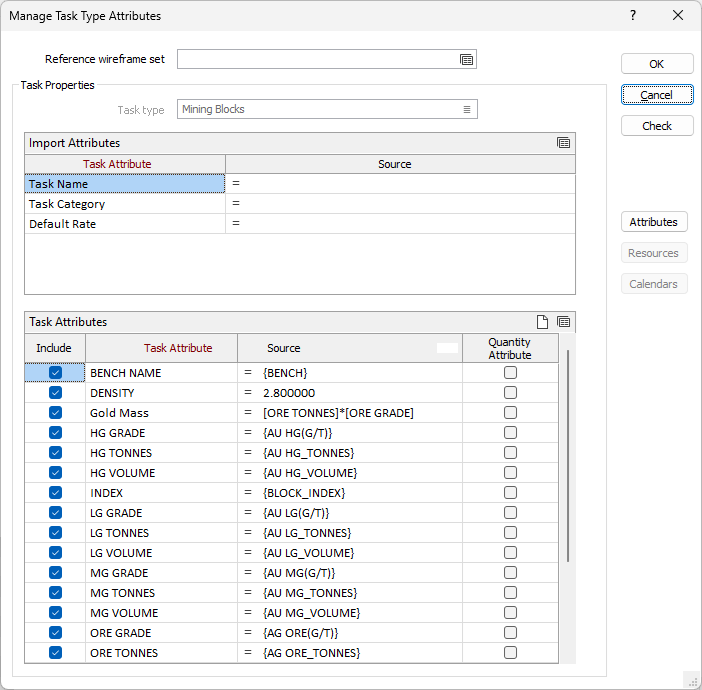
Reference wireframe set
Select the wireframe set for which the list of attributes should be made available for inclusion in expressions for Task Properties > Import Attributes > Source and Task Properties > Task Attributes > Source on this form.
The wireframe set that you select should be either:
-
the wireframe set from which you will be importing the tasks of this type, or
-
a wireframe set that has the same attributes as those used by (i).
Task Properties
Select and configure the required task type:
Task type
Select the task type to be configured.
If the form was invoked from the Schedule | Attributes | Task Attributes option, the task type will be preselected to the task type that was selected there.
Hereinafter, this is referred to as the “current” task type.
Import Attributes
Enter the expressions that specify how the values for the core attributes should be calculated for each task of the current type.
Expressions for the following attributes can be specified here:
|
Attribute |
Description |
|---|---|
|
Task Name |
Name of the task. |
|
Task Category |
(Optional.) Category to which the task should be assigned.
Selected from task categories defined using the Schedule | Task Types | Categories | Manage option. |
|
Default Rate |
Rate at which the task should be completed when valid, more-specific rates are not available.
The rate is the maximum number of units of the quantity attribute that can be completed for the tasks in one (1) hour.
Example: To define an excavator that can move 6000 tonnes in a 12-hour period when it is operating at maximum capacity, set Rate = 6000 / 12 = 500 (units per hour). Ensure that the quantity attribute is measured in tonnes.
Note: For Strategic schedules, since calendars and resources are not supported, the value must be reflective of typical availability, efficiency, exceptions and working conditions of resources.
Tip: To specify fixed-length durations (e.g. preparation always requires 4 hours) for tasks, assign attribute to store required duration (hours), select attribute as quantity attribute, and set Default rate = 1. To use other duration units, set Default rate = 60 / (length of duration unit in minutes). For example, if value of quantity attribute is specified in multiples of 15 minutes, set Default rate = 60 / 15 = 4. |
|
Calendar |
(Operational schedules only.) Working calendar for the task.
Selected from calendars defined using the Schedule | Calendars | Calendars option. |
|
Resources |
(Operational schedules only.) Resource to be allocated to the task.
Selected from resources defined using the Schedule | Resources | Manage option. |
Further details on specifying the values for these attributes can be found in Task Attributes.
Task Attributes
Select the attributes (as defined using the Schedule | Attributes | Task Attributes option) that are to be used by tasks of the current type and enter the expressions that specify how the values for those attributes should be calculated for the tasks.
Include
Use the check box to indicate whether the attribute is to be used by tasks of the current type.
Task Attribute
Specifies the name of the attribute.
This name cannot be changed here. Click the Attributes button to manage the list of attributes.
Source
Enter the expression that specifies how the value of the attribute should be calculated for each task.
To invoke the Expression Editor, press the Equals icon (=) on the left-hand side of the field:
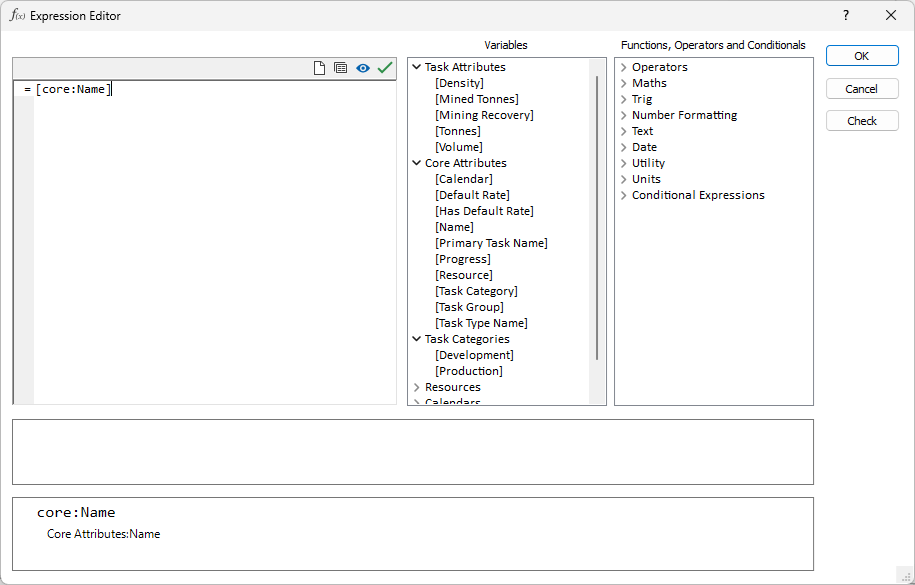
The Variables selector lists attributes and predefined values that can be included in the expression and is organised into 7 categories:
|
Category |
Description |
|---|---|
|
Wireframe Attributes |
Attributes from wireframe set selected in Reference wireframe set. |
|
Task Attributes |
Attributes selected for current task type. |
|
Schedule Attributes |
Attributes created by scheduler and common to all task types. |
|
Task Categories |
Task categories defined using Schedule | Task Types | Categories | Manage option. Suitable for assignment to Task Category attribute. |
|
Resources |
(Operational schedules only.) Resources defined using Schedule | Resources | Manage option. Suitable for assignment to Resources attribute. |
|
Calendars |
(Operational schedules only.) Calendars defined using Schedule | Calendars | Calendars option. Suitable for assignment to Calendars attribute. |
|
Constants |
Pre-defined mathematical and application-specific constants. |
Click the left mouse button on the > next to the label to display the items in each category as required.
Quantity Attribute
The quantity attribute is the task attribute for which the value specifies how much work is to be completed for the task. For example, if the purpose of the task is to mine material, the quantity attribute would be the attribute that specifies the amount of material to be mined.
Use the check box to indicate whether the attribute should be used as the quantity attribute for tasks of the current type.
Note: Rates for resources and default rates for task types must be specified in units that are consistent with the units in which the quantity attribute for the tasks is specified. For example, if the quantity attribute is specified in metres (m), the rates must be specified in metres per hour (m/hr).
Check
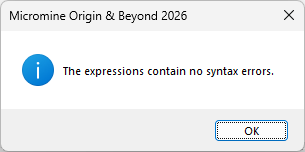
Click the Check button to validate all of the expressions specified in the Source columns for Import Attributes and Task Attributes.
If all of the expressions are valid, the following message will be displayed:
Attributes
Click the Attributes button to configure the attributes that can be assigned to tasks, via their task types, in the current schedule.
This is equivalent to using the Schedule | Attributes | Task Attributes option, see Task Attributes
Resources (Operational Schedules Only)
Click the Resources button to define the resources that can complete work on tasks in the current schedule.
This is equivalent to using the Schedule | Resources | Manage option, see: Manage Resource
Calendars (Operational Schedules Only)
Click the Calendars button to define the calendars that can be assigned to tasks and resources in the current schedule.
This is equivalent to using the Schedule | Calendars | Calendars option, see: Calendars (Operational Schedule Only)
OK
Click OK to assign the attribute selections and definitions to the current task type.
Template
The Template button is only available for Template Forms. Template Forms inherit saved or previously used values.
Click the Template button to select and open a saved form set template.
Load Template
Click the Load Template button to select and open a saved template to populate the fields of the form.
Save Template
Click the Save Template button to save the details of the current form as a template that can be loaded at a later time.
Manage
Click the Manage button to open the Template Forms manager which can be used to open, save, delete, import and export the template forms for your project.
Undo and Redo
Click Undo (CTRL + Z) to undo recent changes in the form. After an Undo, click Redo (CTRL + Y) to restore the last change that was undone.
Collapse
Collapse (roll-up) the form to preview a chart, or preview the results of an operation in Vizex, or obtain input values from Vizex, the Property Window, the File Editor, or the Plot Editor.