Saving a layout as a template
To save the current layout as a Plot Editor Template:
From the File menu:
- Select the File | Save As menu option.
- In the Save As dialog, select the Plot Editor Template (.PTX) file type.
- Navigate to the folder location where you want to save the file. Your current project folder will be the default location.
- Enter a name for the template.
- Click Save.
From the Plot Editor
-
Select the Plot Editor | Save As Template option.
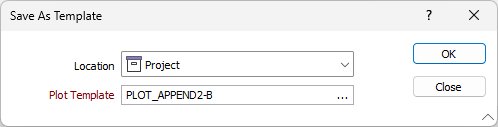
The Save As Template dialog opens.
-
Use the Location drop down to select the folder where you want to save the plot file.
-
Defaults: The default Environment folder in the application installation location.
-
User: The user-specific (local) Environment folder for the application installation.
-
Project: The current project directory.
-
Custom: A specified location outside of the three known locations.
-
-
Name or select the Plot Template file from the field provided.
-
Click OK to save the template.
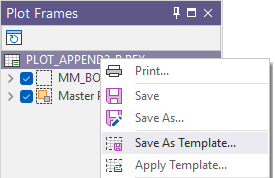
To quickly save the current layout as a template, right-click on the layout name in the Plot Frames pane and select Save as Template from the right-click menu.