Creating a new blank layout
New Layout
To create a new layout from scratch:
- On the Vizex tab, in the Plot group: Select Open | New Layout.
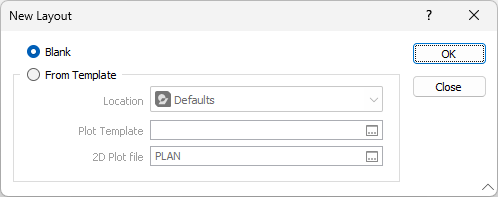
- In the New layout dialog, select the Blank option:
- Double-click anywhere on the layout to display the Page Setup form. Set the page size and the orientation of the plot and use the spin boxes to enter or select the margins of the plot. A red box which represents the area of the plot, is highlighted in the layout window.
- You can now build your layout by adding frames to the plot.
- Save your layout by clicking the Save button on the Plot Editor toolbar.
New layouts can be completed by applying a template and modifying the results to suit your requirements.
Apply a Template
If you want to select a template and use it as the basis for a plot layout,
-
Select Apply Template on the Plot Editor ribbon in the Template group.
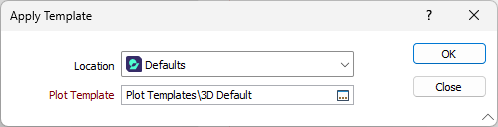
The Apply Template dialog opens.
-
Select the Location of the template you want to apply from the drop down list.
-
Double click (F3) in the Plot Template field to select the template to be applied.
-
Click OK to apply the template to the current layout.
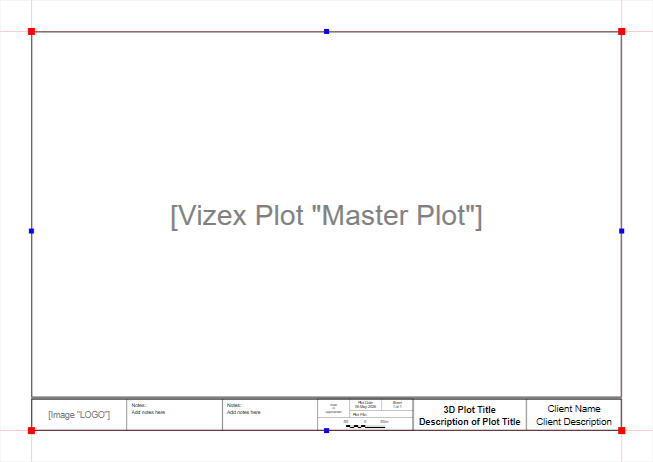
You can modify the current plot based on the template and save it as a layout or a different template.
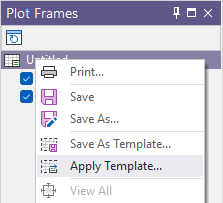
To quickly apply a template to the current layout, right-click on the layout name in the Plot Frames pane and select Apply Template from the right-click menu.