

Strings
The inputs on this tab are enabled when you select the Strings input mode on the Files tab of the Unfolding form.
Footwall and Hangingwall Files
On the Strings tab of the Unfolding form, select the string files and fields that define the sub-surface and surface (footwall and hangingwall) structures that will be used to adjust the coordinates of the input ore body.
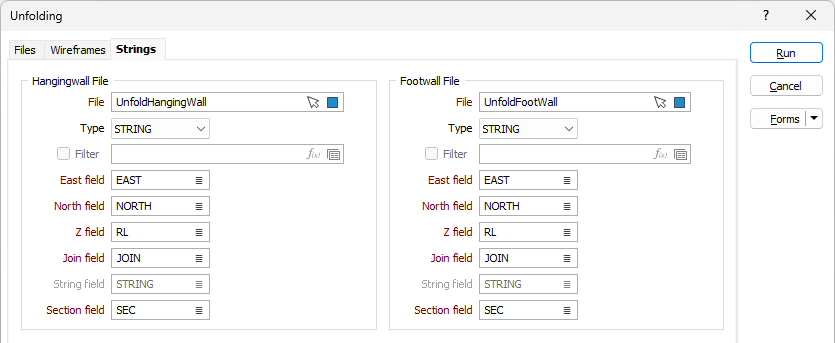
A model of the folded model is built from hexahedrons which are formed from points which lie on the hangingwall and the footwall. These points are connected using sections (vertical planes which the strings lie on) and prorating the length along strings. Each string in the hangingwall and footwall files lie in a particular section.
Sometimes, the application does not know how to link all the points into hexahedrons and fails (simple prorating does not work). In this case, the user must select which points are to be connected. To set these connections, link files are used which are created using wireframing tie lines.
Requirements on input string files
Strings in the hangingwall and footwall files which have the same Section value (which is integer) must lie in the same vertical section plane. Only one string is allowed for each section value and each file. Each hangingwall section string must have a corresponding footwall string and vice versa.
The direction of all the hangingwall and footwall strings must coincide. Links are 2-point strings which connect points on the hangingwall and the footwall strings. There are two types of links inside the sections and between sections.
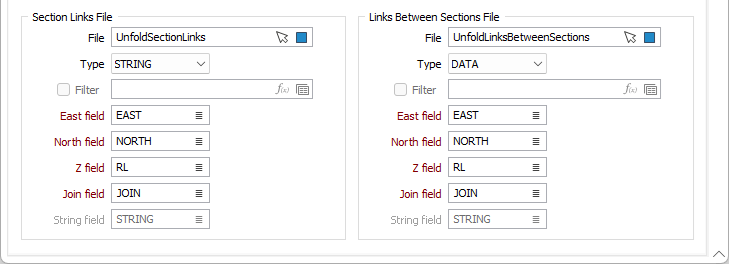
Section Links file
Double click (or press F3) to select the Section Links file. You can also click the Pick from Vizex button to collapse the form and interactively select a layer containing the file to be inserted and return to the form.
The links in this file connect points of strings from the same section (points from the hangingwall are connected to points from the footwall.
Links Between Sections file
Double click (or press F3) to select the Links Between Sections file. You can also click the Pick from Vizex button to collapse the form and interactively select a layer containing the file to be inserted and return to the form.
The links in this file connect strings on neighbouring sections (points on the hangingwall are connected with other points on the hangingwall, and the same for the footwall. Each point can be linked to only one other point (which is not true for links between sections, as each point can be connected to two points on two neighbouring sections.
Defining links
In order to build the folded model from strings, it maybe necessary to provide link strings which can be created using Vizex Wireframing tools.
Tie lines can be used to define the links between complex folded structures. This will typically be the links between the hangingwall and the footwall within a section (Section Links), and the links between the hangingwalls on adjacent sections (Links Between Sections).
Links between footwalls on adjacent sections are determined automatically as part of the process.
Run
When you have set unfolding options and specified a Wireframes or Strings input mode, click Run to begin the Flattening process.