

Optimise

Notes
- During the optimisation process, numeric values in the output file are re-calculated using a volume weighted average and character fields are assigned a value which is the most commonly occurring (or the last encountered) value for the sub-blocks being combined into larger cells.
- Blocks will only be optimised if the key values match for all of the blocks.
- The optimisation process cannot produce irregular (L-shaped or T-shaped) blocks.
- If the input model does not have sub-blocks, then the output model will be exactly the same as the input model.
File
Double click (or press F3) to specify a block model file as the input file. You can also click the Pick from Vizex button to collapse the form and interactively select a layer containing the file to be inserted and return to the form.
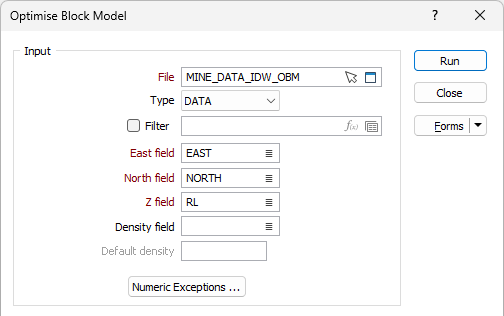
Easting, Northing and Z fields
Specify Easting, Northing and Z coordinate fields in the input file.
Density field and Default Density
Optionally specify an Density field and a default value.
Numeric Exceptions
(Optionally) Use the Numeric Exceptions group to control the way that non-numeric values are handled. Non-numeric values include characters, blanks, and values preceded by a less than sign (<).
Key Fields
Specify the key fields in the input file.
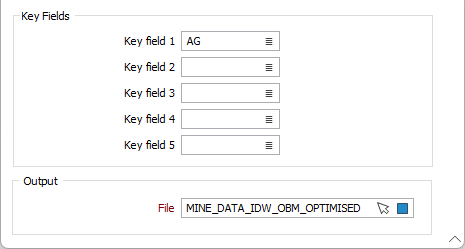
Key fields in the input file are used to determine which sub-blocks will be optimised, given that they come from the same parent cell. Only those sub-blocks which belong to the same parent cell and which share the same key field values can be optimised.
A key field might identify which blocks sit within the same wireframe, or which blocks are situated above or below a DTM surface.
Output file
Double-click (or click on the Select icon) to select the name of the output file. You can also click the Pick from Vizex button to collapse the form and interactively select a layer containing the file to be inserted and return to the form.
Forms
Click the Forms button to select and open a saved form set, or if a form set has been loaded, save the current form set.
Run
Click the Run button to run the Optimise process using the parameters you have defined.