

ODBC Connection Timeout
When importing data or linking to data via an ODBC connection, there is an in-built 120 second timeout limit on the ODBC connection. This timeout limit can be modified for the project using the ODBC Settings in the Project Options.
System Administrators can also make changes to the timeout limit by making changes to the registry settings. The registry key created can be used as a read-only fallback if an unexpected error occurs when retrieving the form-based value.
Registry settings should only be modified by a system administrator, and only when a persistent time-out error occurs. When modifying registry settings, a backup of the registry should be made.
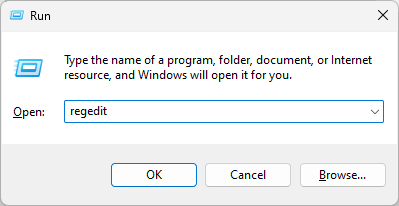
- Start the registry editor (Start | All Programs | Accessories | Run and then type regedit ) In Windows 11, press the Windows key and type Run in the search field.
- Browse to "My Computer\HKEY_CURRENT_USER\Software\Micromine Pty Ltd\Micromine\All"
- Create a new registry key by right clicking in the keys list. Select New | DWORD Value from the right-click menu.
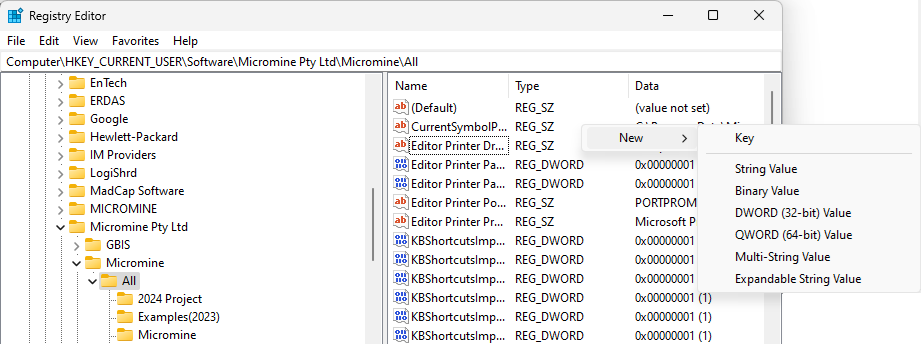
- Rename the new key as "ODBC Connection Timeout ".

- Enter a value for the new key by double-clicking on it. A suggested value is 60 (the value is measured in seconds).
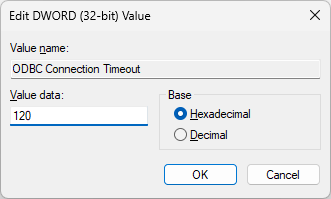
- Repeat steps 3, 4, and 5 to create a second key named "ODBC Command Timeout ".